Handbook: every module, step by step
Prepper is the emergency app for your household. This page explains every module with pictures from the app. The pictures show the demo household "Familie Muster".
🚀Getting started
From zero to an app that keeps watch for the whole family in five minutes.
- Install: iPhone: on the App Store. Android: APK from prepper.team, allow "unknown sources" once, the app announces new versions itself. On a computer or without installing: app.prepper.team in the browser, everything except radio.
- Create a household: on first start choose "Create household" and give it a name. The first device is now signed in.
- More devices: Settings → "Join code" shows a code valid for 30 minutes. On the second phone choose "Join with code". Or share the join link.
- Allow push: the app asks for notifications. Without push, no alerts arrive while the app is closed.
- Set alert places: under Alerts → "+ Place" add the places you want alerts for (home, grandma, work).
- Add people and supplies: only then can the app calculate how long your supplies last.
📱The interface
- Header: module name, SOS (call for help to the household), ⟳ (sync with the server now), ⚙ (settings).
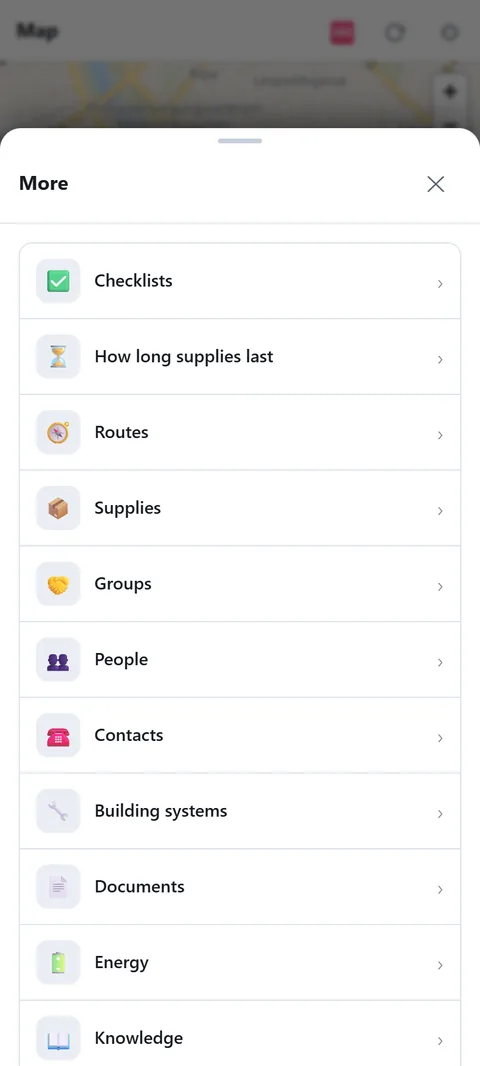
- Bottom bar: Family, Map, Emergency plans ("Plans"), Radio and Chat. If no radio has ever been paired on the phone, Supplies takes the place of Radio; Radio comes back by itself after the first pairing. More shows all other modules, grouped into Preparation, Family & contacts, In an emergency and Practice, each with one sentence on what it is for.
- Sheets: inputs and details open from the bottom as a sheet. Swipe down or ✕ closes it.
- Status bar: messages like "No network" or "New version loaded — tap to restart" appear under the header.
- Language: German, English, Slovak and Ukrainian, automatic by device or fixed in Settings.
👨👩👧Family (start page)
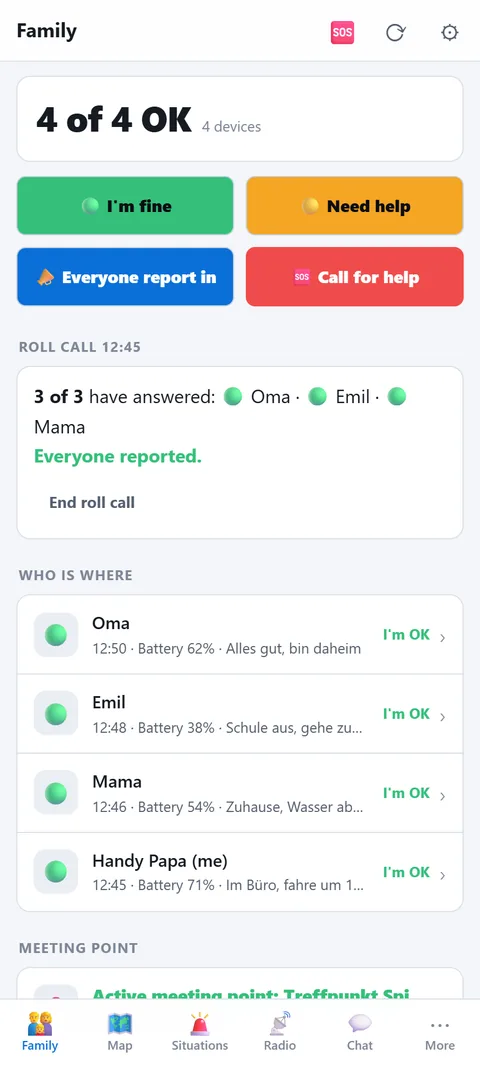
The first page of the app: who is where, who is OK, where do we meet. Everything that happens between the family's devices at a glance.
- Headline number: "3 of 4 OK" counts the status reports of the last 24 hours. If someone needs help, it appears in yellow first.
- Four buttons: 🟢 I'm OK and 🟡 Need help report your status with position and battery to everyone. 📣 Everyone check in asks every device "All good?". 🆘 Call for help opens the emergency button.
- Roll call: the question goes out via internet and radio at once, with alarm tone. Whoever answers taps once. The asker sees "2 of 3 have answered" and who is still missing — for an hour, then "End roll call".
- Who is where: the last report of every device with time, battery and text; tap to show it on the map. Reports via radio appear here just the same.
- Meeting point: the active meeting point with every device's distance. Create markers of type "Meeting point" on the map, activate here — everyone sees it immediately.
- Practice: the family drill (own section below) and when it last ran. After three months the line reminds you in orange.
- Channels: internet up or down, radio connected or not, notifications on or off, alert places, charge level of the family radios. Every line leads to where you fix it.
🎯Family drill
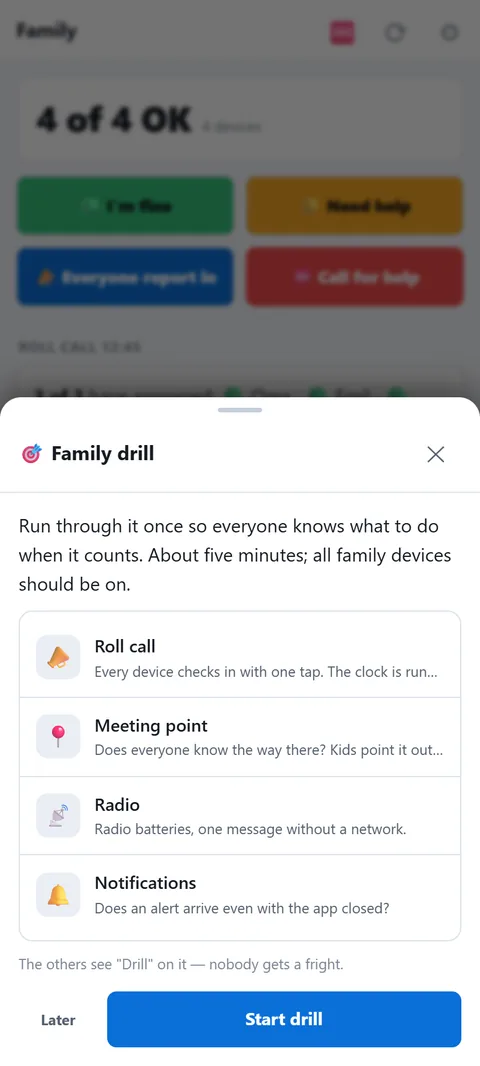
Run through it once before it gets serious — like the fire drill at school. Five minutes, all devices on, then everyone knows what to do.
- Start: Family → Practice → "Start drill". The others see "Drill!" in the notification — nobody gets a fright.
- 1 Roll call: every device checks in with one tap, the clock is running. Kids in simple mode press the green button.
- 2 Meeting point: does everyone know the way there from school and work? Kids tap "To the meeting point" and show it on the map. If there is no meeting point, set one now.
- 3 Radio: charge level of the family radios, then a test message — most honest with the phone in flight mode. Without a radio the step is skipped.
- 4 Notifications: are notifications on, is there an alert place? Check the same on every device — a phone with notifications off gets nothing when it counts.
- Result: "Drill passed" or "Drill done" with the open points, plus "3 of 3 checked in within 2:40". The result goes as a line into the family chat so every device knows when the last drill was.
🗺️Map
Your places, the situation layers and the offline map for when there is no network.
Buttons on the right
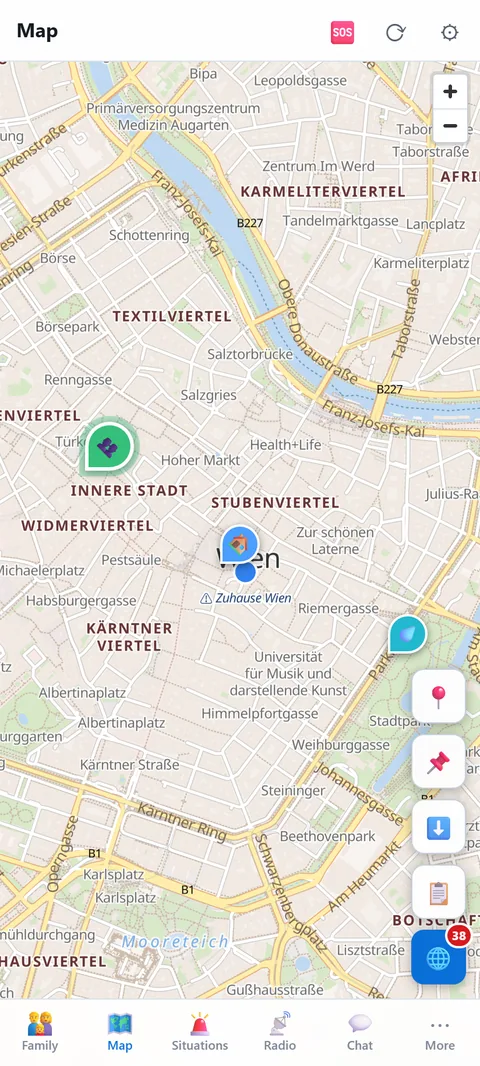
- 📍 Position: show your own position and follow it.
- 📌 Set marker: tap, then tap the map. Category (meeting point, water, shelter, medical, fuel, depot, danger), title, description. Markers are visible to the whole household and serve as storage locations, route targets and group locations.
- ⬇️ Offline area: “Save your places” stores the area around all markers and alert places in one tap (10 km each in full detail plus an overview). Until something is saved, a blue hint at the bottom of the map points to it. More about the offline map. “Save area” downloads the visible area. Three levels: nearby only (zoom 12–14), with overview (10–14, recommended), full zoom chain (8–14). Areas can be shared with the household so other devices load them from the server.
- 📋 Marker list: all markers with a jump to the map.
- 🌐 Situation: switch the event layers on and off (next section). The number is the count of current events.
Tapping a marker shows details, edit and delete. Group locations and locations shared by group members also appear on the main map.
Prepare before you need it
- Download offline areas for where you live, the way to work, the children's school and a fallback destination, once on Wi-Fi. Without a network the app cannot fetch new map pieces.
- Set two meeting points as markers: one close by and one further away in case your own neighbourhood cannot be reached. Everyone in the household sees them.
- Add water points, pharmacy, petrol station and the fire station. In many municipalities it is the contact point during a blackout.
- Share an area with the household: the other devices then fetch it from the Prepper server instead of each downloading it separately.
On the move without a network
GPS works without a mobile network and without internet, because the phone receives the satellites directly. Your own position therefore shows on the offline map even in a blackout. Indoors the first fix can take a few minutes; outdoors it is faster. To save battery, check briefly rather than leaving "follow the map" running all the time.
Without a network you miss new events in the Situation layers and the positions of others via the server. With radios, family members still appear on the map, at the position their device last transmitted.
Where the map comes from
The map data comes from OpenStreetMap and is served from Prepper's own server, not by Google or Apple. No advertising network learns which area you look at.
🌐Situation layers
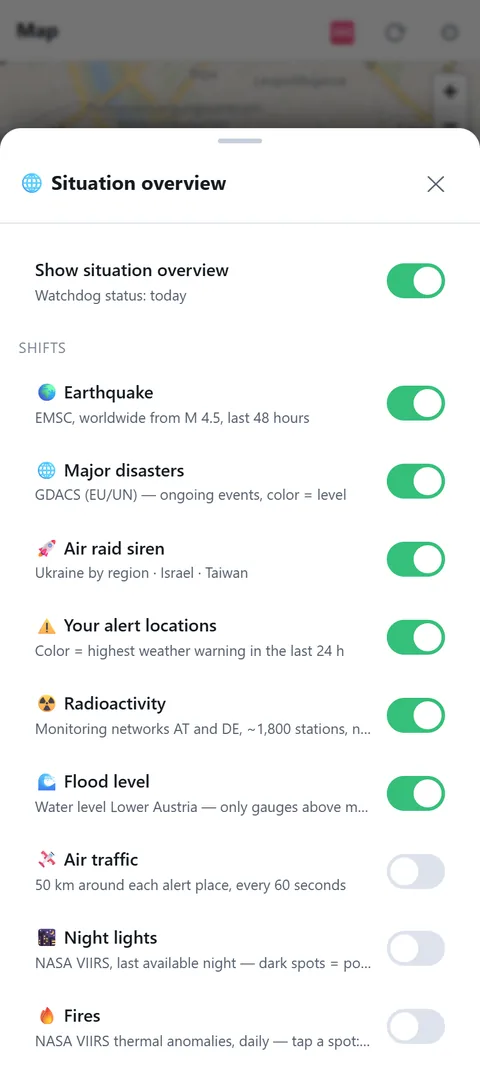
What is happening right now, as layers on the map. Each layer can be switched separately.
- Your alert places: colour = highest weather warning of the last 24 hours.
- Earthquakes: EMSC, worldwide from magnitude 4.5, last 48 hours.
- Major disasters: GDACS (EU/UN), ongoing events, colour = level.
- Air raid alerts: Ukraine by region, Israel, Taiwan.
- Radiation: Austrian and German networks, about 1,800 stations, red = elevated.
- River levels: Lower Austria, only gauges above mean water.
- Air traffic: aircraft around your alert places.
- Night lights: NASA satellite, last night. Dark patches = power outage.
- Fires: NASA thermal anomalies. Persistent spots are usually industry (cement, steel), not fires. Tapping shows a hint.
Which layers are offered depends on your region: river levels and radiation only exist where a network is connected.
What you use the situation layers for
Before a decision, the situation layers answer one simple question: is something under way that affects me? Before a trip you check river levels and storms; on news of a distant power cut you look at the night lights. The picture refreshes every 5 minutes. The layers give you the overview, while push alerts come from the Alerts module.
What is on at the start
- On: earthquakes, major disasters, air raid alerts, your alert places, radiation and river levels.
- Off, switch on when needed: air traffic (50 km around each alert place, every 60 seconds), night lights and fires. The two satellite layers come straight from NASA and need a connection.
Reading the sources correctly
- Radiation: the gamma dose rate is measured in nSv/h, by the Austrian radiation early warning system (111 stations) and the German Federal Office for Radiation Protection (about 1,700 stations). Each station is judged against its own normal value: red from 500 nSv/h, or from 300 nSv/h if the reading is almost double what is usual there. A site with naturally high background therefore stays calm.
- Floods: river gauges are grouped in classes: above mean water, then HW1 (annual flood), HW5, HW30, HW100. Red from HW5.
- Earthquakes: worldwide from magnitude 4.5 in the last 48 hours. Circle size shows strength.
- Night lights: dark patches can mean a power outage, but also cloud. A hint, not proof.
Limits
The data comes from measuring networks and agencies and is always a little older than the event. Without a connection the app shows the last known state. The situation layers do not replace an official warning. River levels and radiation only appear where a measuring network is connected.
📡Alerts
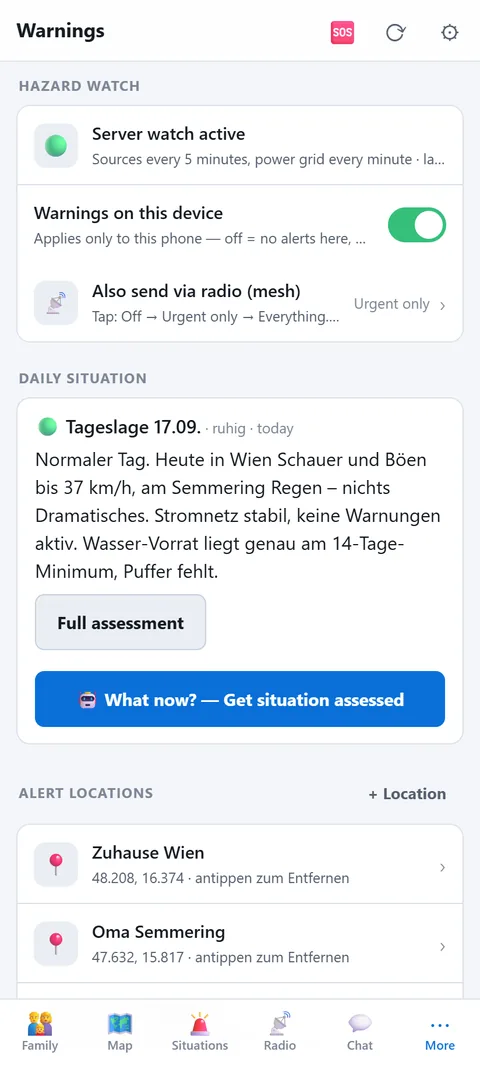
The server-side watch checks your sources around the clock and sends push alerts for your places.
What gets reported
- Weather: official warnings (storms, floods) from the level you choose.
- Power grid: early warning from electricity price (scarcity tomorrow) and grid frequency (deviation from 50 Hz).
- Earthquakes, disasters, air raids, radiation, river levels: as soon as they affect your alert places.
- Own sources: from the catalogue of warning services (over 90 worldwide) or your own RSS feed with a filter word.
Setting up
- Alerts on this device: switch per phone. Off = this phone gets no alerts, the others in the household still do.
- Alert places: "+ Place" by GPS, marker or address. Sources are checked for every place.
- Region: the app detects your region and hides sources that do not apply (no European grid frequency in the USA, for example).
- Daily briefing: every morning a short assessment of your situation: supplies, alerts, weather. "What now?" fetches a fresh assessment any time.
- Devices in the household: which devices receive push and when they last synced.
Setting up alert places sensibly
Add places where you can really be: home, work, the children's school, your retreat. Up to five alert places are possible. Each place is checked separately, so a storm warning for your home is not drowned out by a report from the other end of the country. Without your own alert place only the server's default place applies, and the alerts are not tailored to you.
Sources, thresholds and radii
- Storm warning: GeoSphere Austria, from orange by default. You can set yellow, orange or red. Red always arrives as an urgent alert.
- Earthquakes: EMSC, only where it can be felt: M4 up to 50 km, M5 up to 150 km, M6 up to 300 km from the alert location. From magnitude 4 by default (adjustable 3 to 6). Urgent from M5.
- Major disasters: GDACS: red up to 1,500 km, orange up to 800 km. The alarm tone is reserved for red within 500 km.
- Radiation: an elevated station within 150 km of an alert place always counts as urgent, even at night.
- Floods: gauges from HW1 (annual flood) within 30 km of an alert place, forecasts included.
- Blackout early warning: grid frequency: a deviation of 0.15 Hz or more from 50 Hz is the pre-warning, 0.2 Hz the alarm. Both only after two readings in a row. For tomorrow's power price (day-ahead), 400 €/MWh counts as tight and 800 €/MWh as crisis level.
Quiet hours and honest limits
Non-urgent alerts are collected between 22:00 and 07:00 and sent in the morning. Urgent ones always arrive immediately. Each alert arrives only once. Optionally it also goes over radio (mesh) into the family channel, even without a mobile network. The sources have their own delay, and the watch checks them every few minutes. A deviating grid frequency is an early indicator, not a blackout forecast. For your emergency plan: the alert is the reason to open your emergency plan, not the decision itself.
🚨Emergency plans
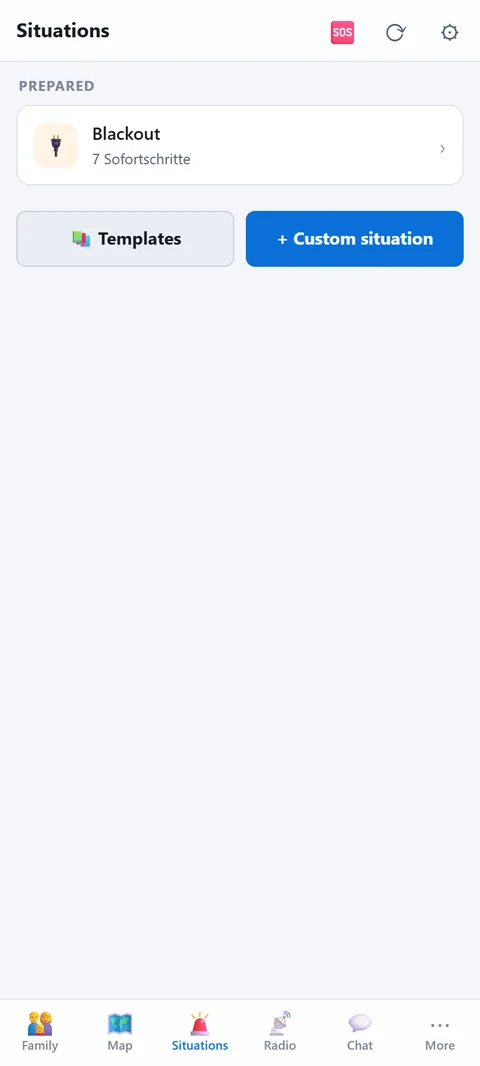
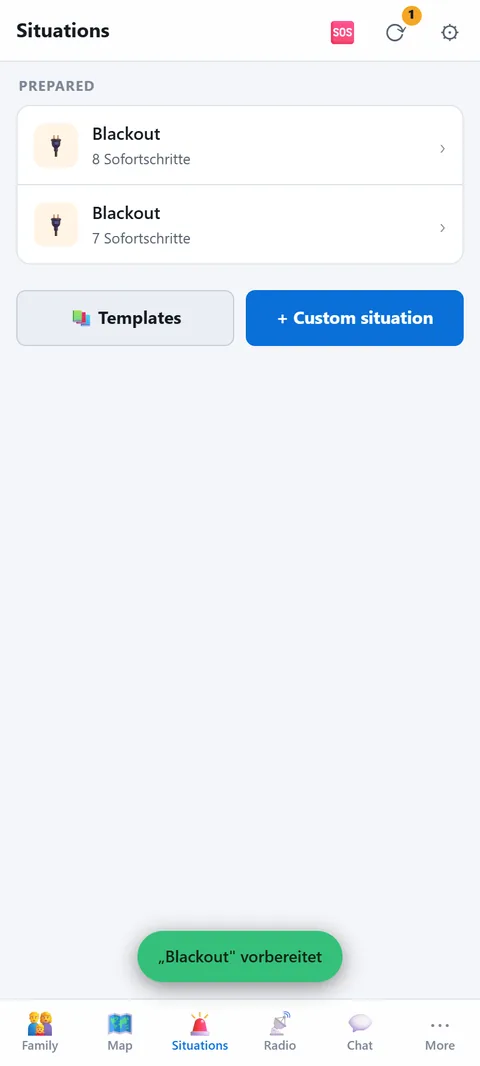
Prepared procedures for an emergency. Activating is one tap, then everyone in the household knows what to do.
- Templates: blackout, evacuation, storm, flood, gas or chemicals, epidemic. Each template has immediate steps, linked checklists and knowledge articles.
- Customise: rewrite steps, attach your own checklists, choose which marker types are highlighted on the map.
- Activate: the emergency plan appears as a banner in every module on every device of the household. The log assigns entries to this emergency plan.
- End: when it is over, "End emergency plan". The preparation stays for next time.
When an emergency plan makes sense
A crisis plan only helps if it exists before the emergency. An emergency plan is your template for the emergency: you decide what comes first while you can still think clearly. If a flood report comes in, for example, you open the prepared emergency plan and work through the immediate steps in order. Activating asks first, because every device in the household shows the emergency plan and, if set up, also gets a message on the phone. The chat records the time. Only one emergency plan is active at a time: activating a new one ends the previous one. The app never activates an emergency plan by itself, that is your decision.
The crisis status at a glance
The active emergency plan shows four lines at the top, which the app gathers from your modules:
- Family: how many have reported OK, who needs help, who has not reported yet.
- Communication: internet, radio and radio base station, connected or not.
- Meeting point: the active meeting point with coordinates.
- Supplies: days of water, food, power and medication against your goal.
These lines are only as good as the data behind them, so keep people, supplies and meeting point up to date beforehand.
Special templates
Besides the familiar templates there is the Radiation emergency plan with a fallout calculator (wind, arrival of the cloud), and for a blackout the blackout clock from hour 0 to day 30. Iodine tablets are mentioned there only with the note to take them solely on official instruction. The templates are a starting point, not an official instruction. Adapt them to your house, your people and your medication, and keep the immediate steps short.
✅Checklists
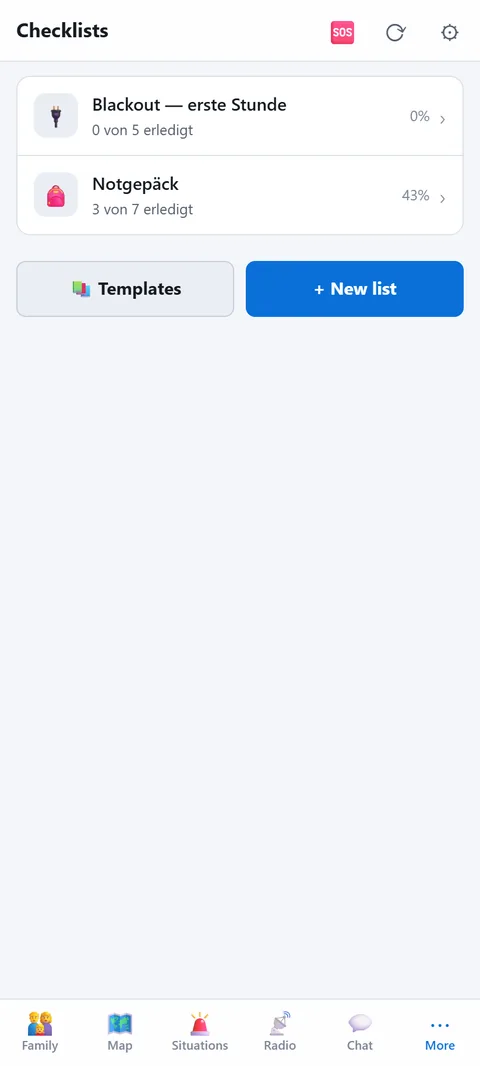
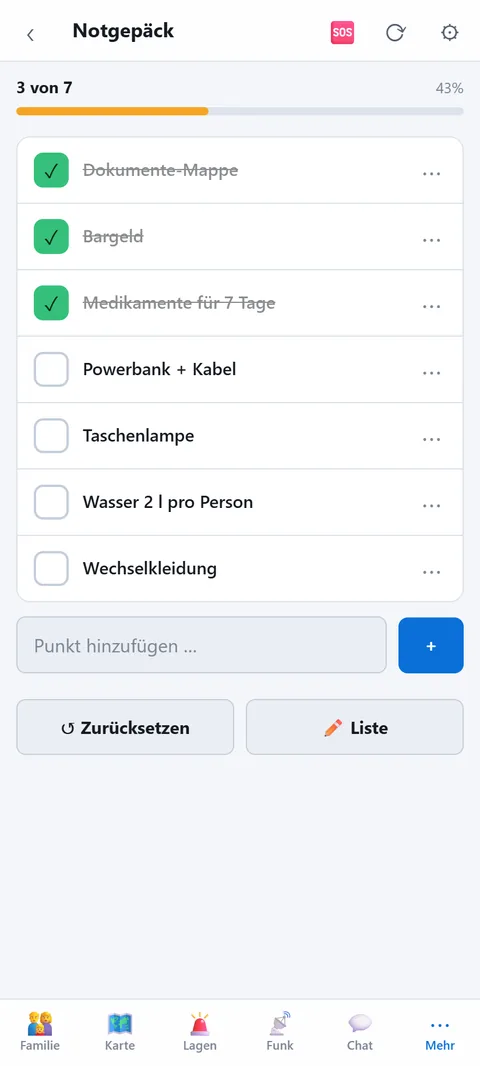
Go-bag, blackout routine, departure: tick off instead of thinking.
- Templates for the most common lists, own lists with an icon.
- Items: tap to tick, add new items directly at the bottom, drag to sort.
- Shared: every list is on every device of the household, ticks are synced.
- Link to situations: a situation can link lists, they appear when it is activated.
Five templates for an emergency
If you face an empty list you never start. That is why the app ships five templates based on the recommendations of the Austrian civil protection association and the German BBK.
- Go-bag (16 items): the emergency luggage: copies of ID, cash in small notes, 2 litres of water per person, food for 2 days, first-aid kit with medication, crank or battery radio, a charged power bank, rescue blanket, emergency contacts and a map on paper.
- Blackout, first hour (12 items): the blackout checklist: check the fuses, switch on the radio, keep the fridge closed, unplug appliances, fill the bath and canisters with water, check on neighbours, candles only under supervision.
- Evacuation (11 items): shut off gas, water and power, pets, medication, meeting point and a message to relatives.
- Retreat location (46 items): for two weeks without power, grouped into water, food, warmth, medicine and documents.
- Check the first-aid cabinet (12 items): including a check of all expiry dates.
Preparation and procedure
There are two kinds of lists. A preparation like the go-bag stays ticked. A procedure like the evacuation is cleared with "Reset" before every run. A bar at the top shows progress in percent, and at 100 % "done" appears. A template is created as a copy: you can change, delete or add items without altering the template. With "⋯" you edit an item, empty text deletes it. Your own lists get one of twelve icons.
Limits
The templates are a starting point, not a complete list. Medication, clothing sizes and glasses prescriptions differ for everyone, and some items are kept general because every household sees the templates. Add personal items in your copy and check the pack twice a year: expiry dates, batteries, children's sizes.
🧭Routes
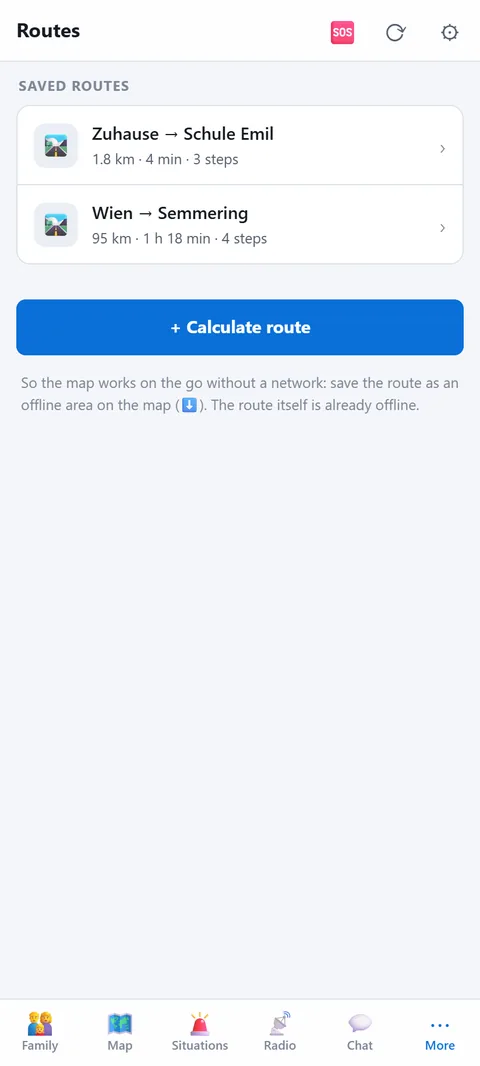
Ways to your retreat, school, work: calculate now with a network, follow without one in an emergency.
- Start and destination from your position, markers, alert places, group locations or locations shared by other households.
- Calculate via a road router (online). The route with turn-by-turn steps is stored and available offline afterwards.
- Follow: let the map guide you, current step on top. Works with the offline area even without a network.
- Share: give routes to a group; members take them into their own routes.
Which routes to prepare
Plan the evacuation route to your retreat, plus the way home from school or work and to the agreed meeting point. When calculating, the app suggests the fastest route and, where available, alternative routes, each with length and travel time. It is saved as "Start → Destination", alternatives carry the suffix "Ausweich 1". In an emergency choose a second route if the first is blocked.
How guidance works
- Steps: Every route contains turn instructions with the street name, the exit at roundabouts, and the distance from the start.
- On the map: Your position moves along the line. At the top you see the next step, the remaining distance, the remaining time and the GPS accuracy in metres. If you are more than 300 m from the route, the app says "Off the route" with the distance.
- Escape route offline: The route itself is stored on the device. To have the map without a network as well, also save the stretch there as an offline area.
- Household: Saved routes appear on all devices of the household.
Limits
Calculation goes through a public routing service (OSRM), so it needs a network, and start and destination are sent to that service as coordinates. The route is for a car; on foot or by bike it is only a guide. It is a snapshot from the day of calculation: it does not know current closures or traffic jams. Drive the most important route once as a trial. Routes are stored like the rest of the household data and, unlike documents, are not additionally encrypted.
💬Chat
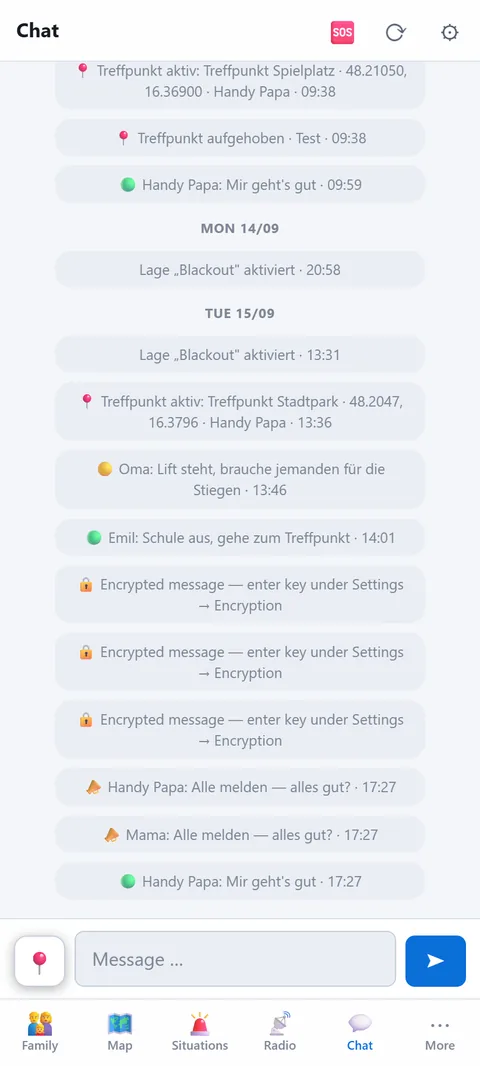
Arrangements within the household: locations, brief status updates, "I'm safe".
- End-to-end encrypted: the key is created on your first device and never leaves the household. The server only sees encrypted records, status and locations included. Only a help call stays open so it reaches every device, even one that has just joined.
- Without a network: messages are buffered and delivered once the network is back. The clock next to a message shows whether it has gone out.
- Send location: one tap, and the point arrives as a message and on the map.
- Not a real-time chat: the app syncs on opening, every few seconds while in the chat, and when the network returns. That saves battery.
📡Radio
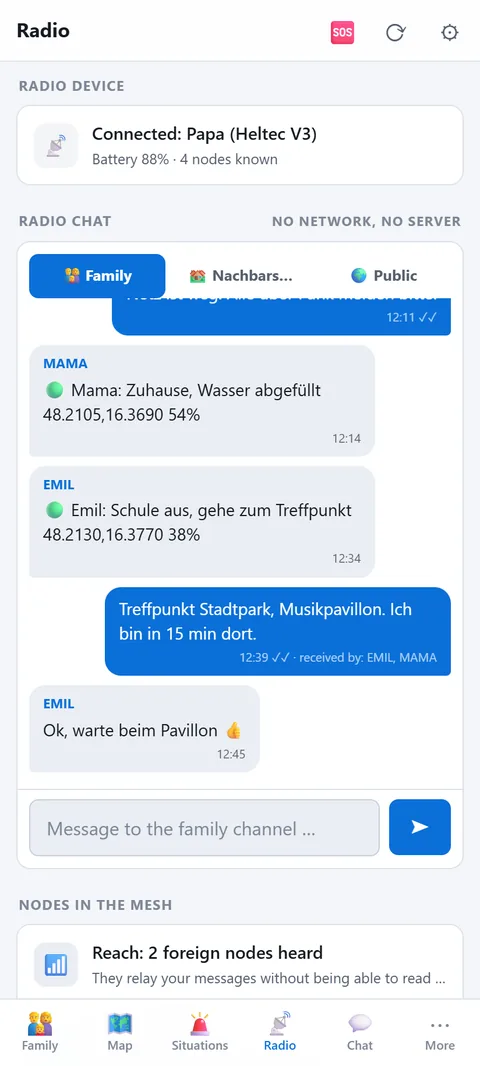
Chat, status and call for help without a mobile network and without the internet — via a small LoRa radio (Meshtastic) connected to the phone by Bluetooth. Three channels: family, group, public.
- Why: in a blackout or network outage, the mobile network is the first thing to go. The radios form their own network (mesh): every device relays, including foreign nodes — without being able to read along. A few hundred metres in town, several kilometres with line of sight.
- What you need: a Meshtastic device from about 30 euros (Heltec V3, Wio Tracker L1, T1000-E) and the app from the store (Android or iPhone). In the browser, radio only works in Chrome on Android or PC.
- Set up: switch on the new device, Radio → "Connect radio", then "⚙️ Set up": the app writes name, region EU_868 and all channels to the device itself. Switch "Base station" for a device that stays at home. The Meshtastic app is not needed; if you use it anyway, scan the "Channel QR".
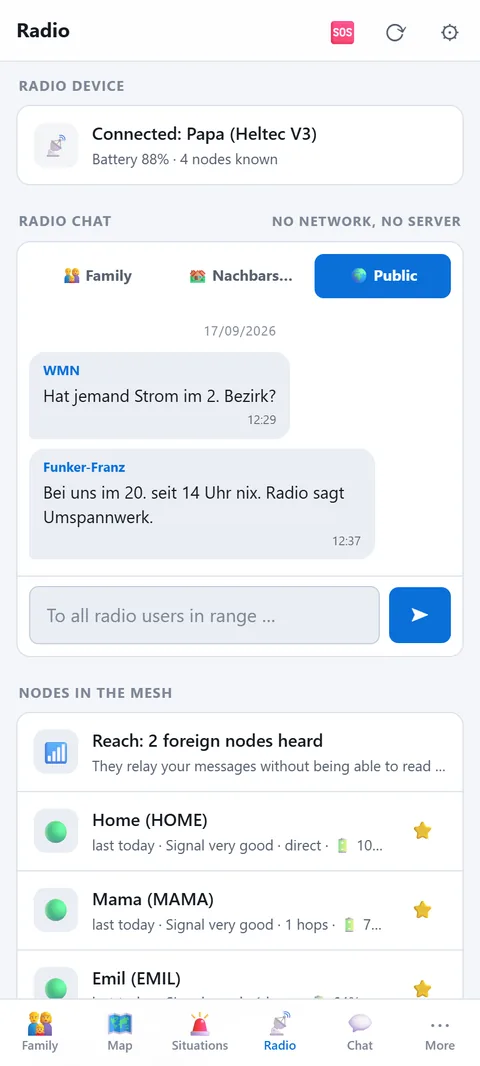
- Three channels: 👨👩👧 Family — encrypted with the household's secret code, with position. 🏘️ Group — own key per group (choose "📡 Radio channel" under Groups), coarse position. 🌍 Public — the Meshtastic default channel read by every node in range; no position, first message with a confirmation.
- Radio chat: up to 200 characters. One tick means sent, two ticks relayed by the mesh, "arrived: Mama, Emil" means their app really has it. If the device is away, the message waits and goes out by itself on reconnect.
- Nodes and reach: "Reach: 14 foreign nodes heard" shows how much mesh is around you right now. ⭐ marks the family; only those appear on the map. "📡 Ping family" asks live who answers.
- Call for help: goes with position and battery to the family channel. In the help sheet you can additionally switch on "also to all radio users in range" — for the case that nobody in the family can be reached.
- Limits: two places 80 km apart are not connected by any mesh — each location needs its own base station. A device with Wi-Fi (gateway) doesn't accept Bluetooth; set it up via the Meshtastic app on the same Wi-Fi.
How a family gets started
- One device for everyone who is out and about, and a base station at home, as high as possible: attic, top floor, window sill. Height brings more range than any accessory.
- Set up all devices through Prepper. They then share the same family channel automatically, without anyone typing in keys.
- Test once while the mobile network still works: write a message, watch the ticks, press "📡 Ping the family".
- Which device suits whom is on the page Radio for Prepper.
When something doesn't work
- No "delivered": the other device is out of range or switched off, or the app there is not connected. The mesh retries a few times. Send again later or look for a higher spot.
- Error 39: a direct message is missing the recipient's key. The app requests it by itself; after a short while it works.
- Error 38: the allowed airtime is briefly used up, because radio in the 868 MHz band may only transmit a small share of the time. Wait a few minutes.
- Many hops: the number shows how often a message was relayed. Even over a short distance it can take a detour via other nodes.
Privacy
The family and group channels are encrypted. Other nodes only relay and cannot read along. Your phone's position is only included when you send a status or distress call yourself. Any other position a radio transmits comes from its own GPS: exact on the family channel, rounded to about 1.5 km on the group channel, none at all on the public channel.
🧰Tools
Small helpers that run on the phone alone — no network, no server, no login. Under "More" → Tools.
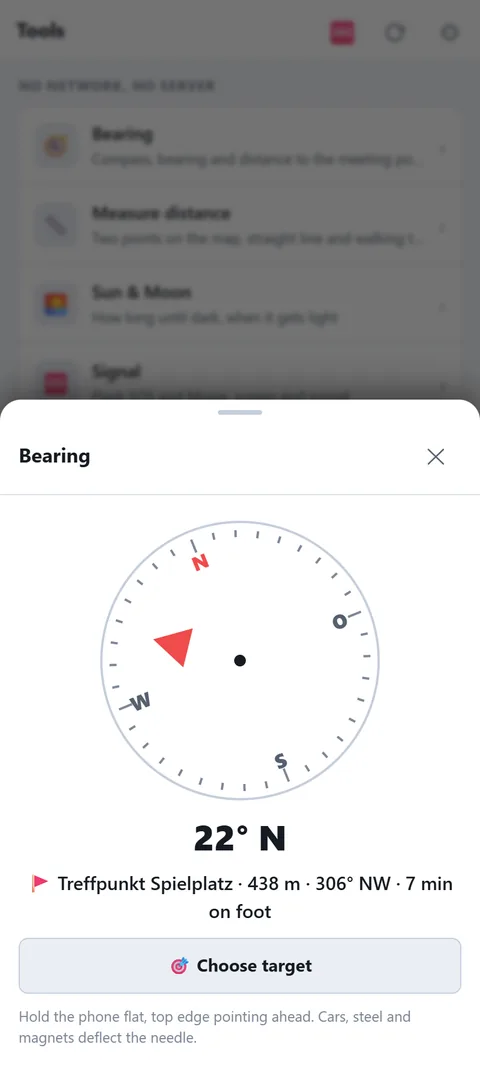
- 🧭 Bearing: compass rose with an arrow to the target — active meeting point, a family member, a marker or alert place. Plus distance, course and walking time. On iPhone tap "Start compass" first. Hold the phone flat; cars, steel and magnets deflect the needle, and an inaccurate compass shows a warning.
- 📏 Measure distance: points A and B from the map, your own location or a known place. Straight line, direction, walking time at 4 km/h — paths are longer, in the mountains often double.
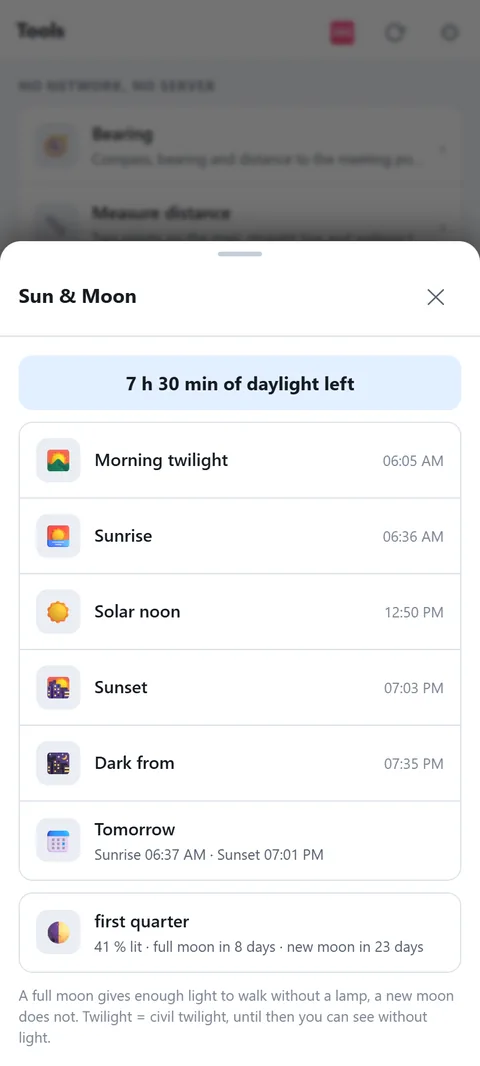
- 🌅 Sun & Moon: "3 h 20 min of daylight left", twilight, sunrise and sunset today and tomorrow, moon phase with days to full moon. Without power, light decides what is still possible.
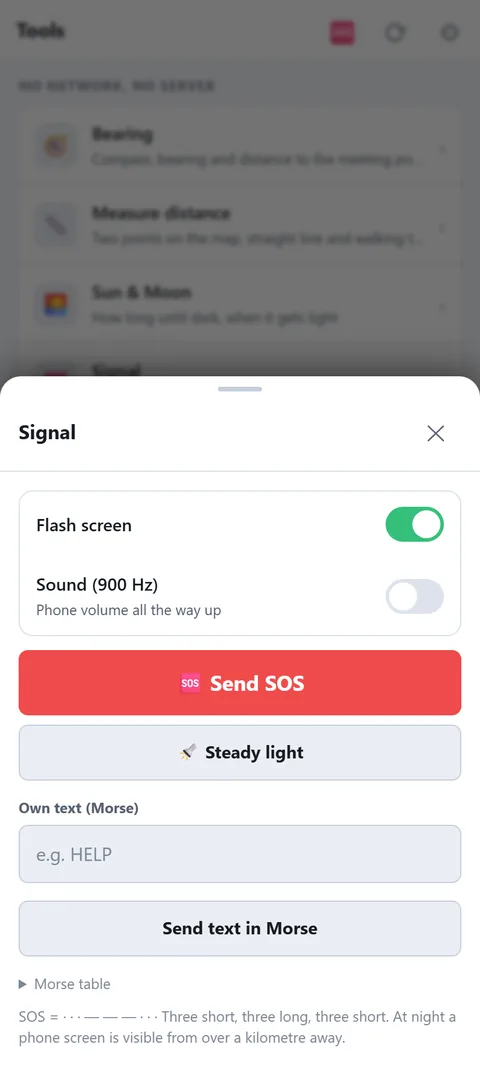
- 🆘 Signal: SOS or your own text in Morse — the screen flashes white/black, optionally with a 900 Hz tone. Steady light as a torch. At night a phone screen is visible from over a kilometre. Morse table for reference.
- ⚡ Thunderstorm: press at the lightning, again at the thunder: distance and whether it is getting closer. Under 3 km: seek shelter.
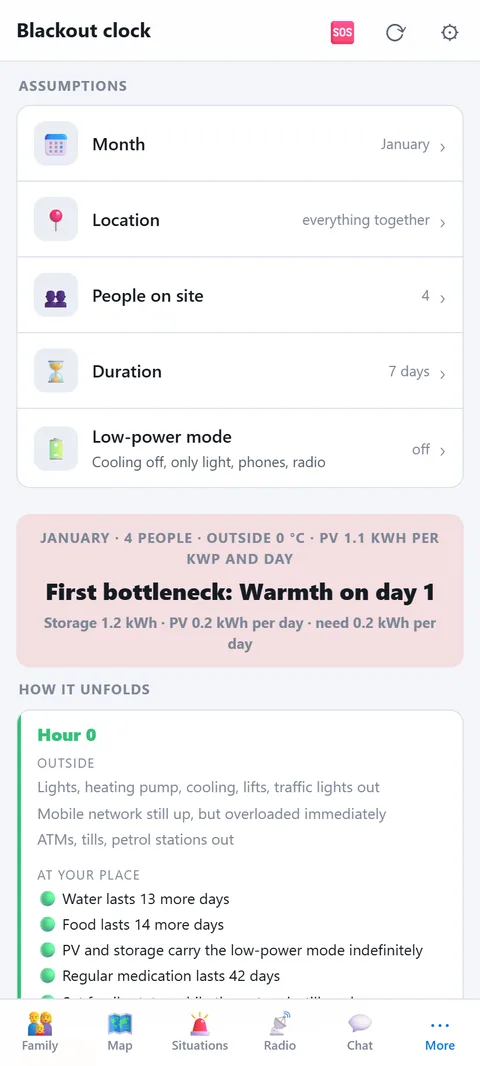
- ⏱️ Blackout clock: set month, location, people, duration and low-power mode — the clock lays your supplies, energy (batteries, PV) and people on a timeline from hour 0 to day 30. On the left what fails outside, on the right what you still have, with a traffic light. Season counts: PV yield per month, outside temperature (mountains four degrees colder), daylight, water need in summer, wood use in winter. At the top the first bottleneck, below the levers that move it. To calculate with your numbers: storage and solar under Energy, firewood, gas bottles for the heater and gas cartridges as fuel in Supplies (the clock recognises them by name: wood, bottle/propane, cartridge), people with medication. Also linked from the "Blackout" situation.
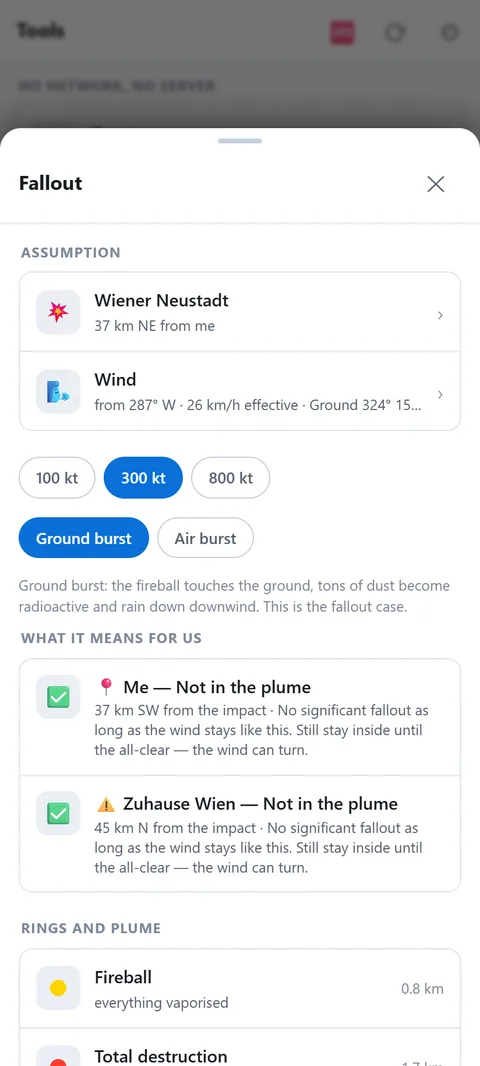
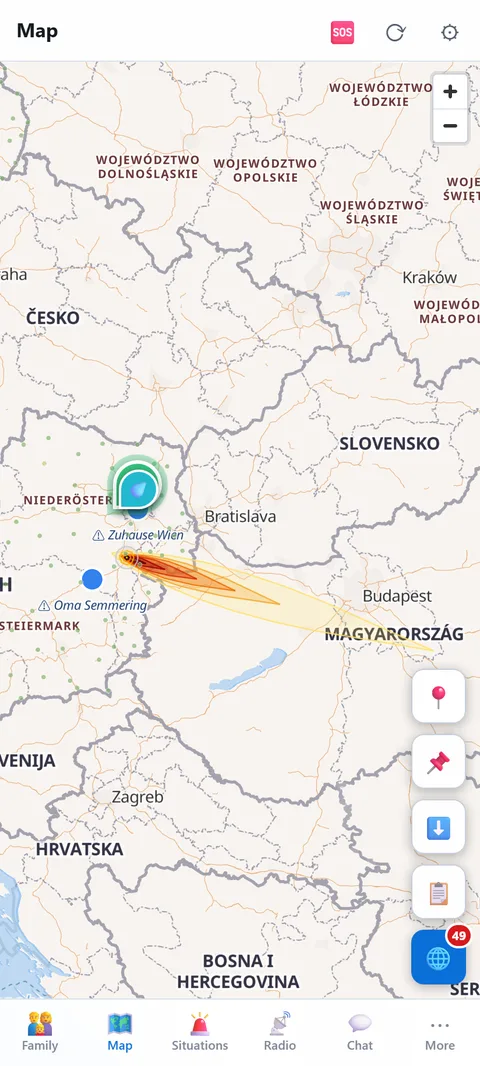
- ☢️ Fallout: choose the impact — major city, nuclear plant, military base, the Warsaw Pact planning targets for Austria or a point on the map, all sorted by distance. Yield 100/300/800 kt, ground or air burst. The wind is real: ground and altitude for the impact point, automatic with a network, by hand without. For you and your alert places it then says: affected or not, fallout arrives in x hours, dose outside and inside, whether there is time to drive crosswind, how long to stay inside. For nuclear plants the cloud without blast, with 5/30/100 km zones. "Show on the map" lays rings and plume over the map for a day. Also linked from the "Radiation" situation. Approximation after Glasstone & Dolan, factor 2 to 3 — when it happens, radio and official readings come first.
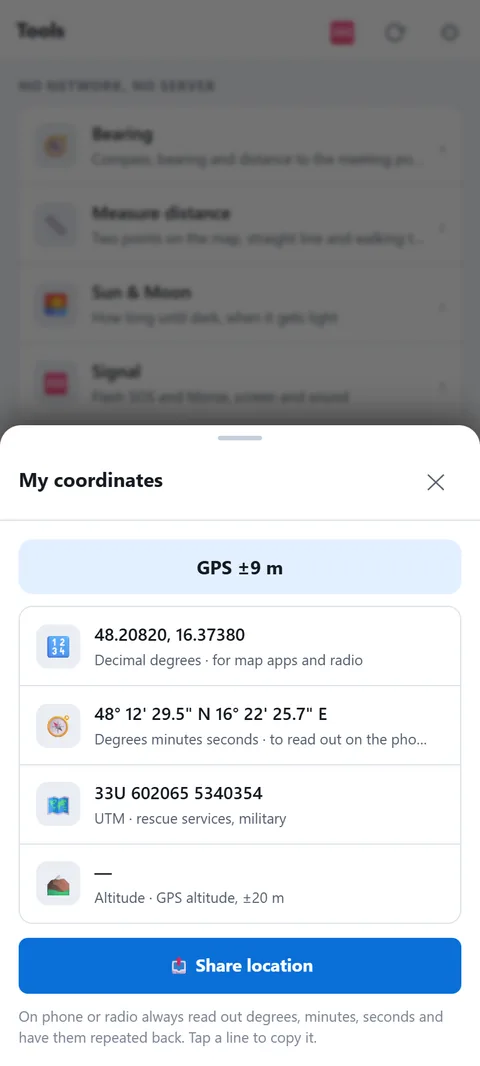
- 📍 My coordinates: decimal degrees, degrees-minutes-seconds, UTM and altitude — to read out on the phone or radio. Tap a line to copy, "Share" sends the position with a map link.
Compass and GPS are approximations. When in doubt compare map and terrain — a wrong arrow in the woods is worse than none.
🟢Family status and meeting point
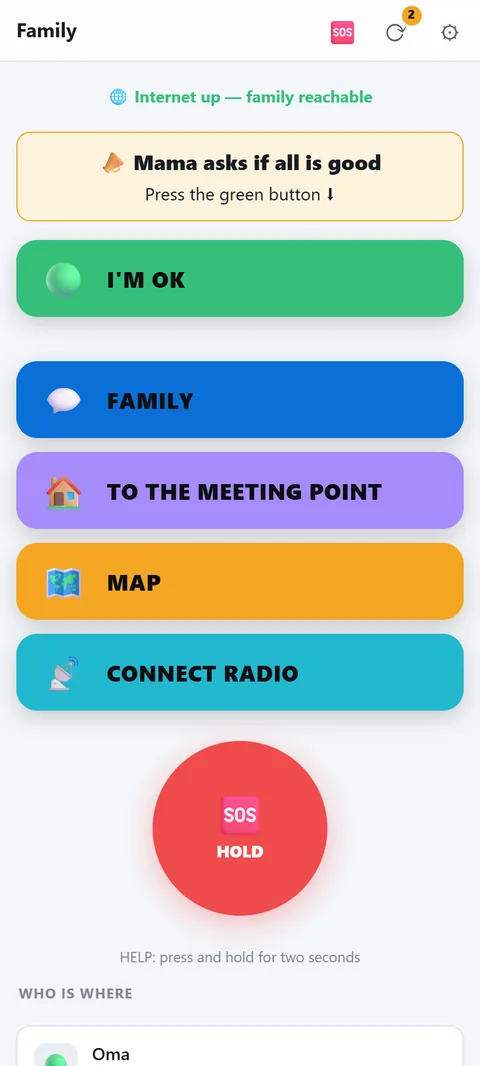
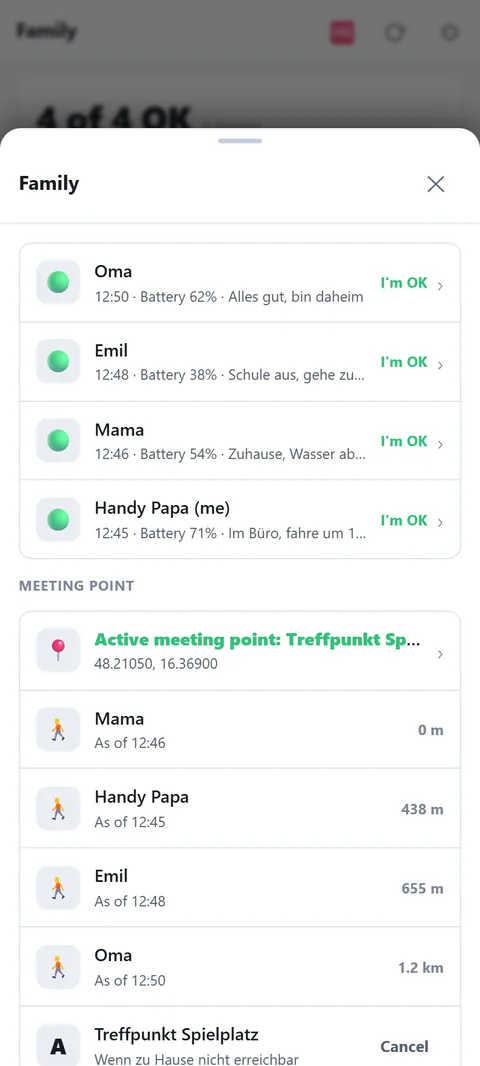
Behind the 🆘 button at the top is the "Family" sheet: who has checked in and how, which meeting point applies, and your own status with one tap.
- Three levels: 🟢 I'm OK (one tap, silent, only overview and chat), 🟡 Need help (one tap, audible message to all, yellow bar at the top until the person reports green again), 🆘 Emergency (hold, alarm, marker on the map).
- Two routes, no choosing: with a network everything goes via the server, with a radio additionally via LoRa. Afterwards it says what got through: "✓ Via internet to 3 devices" or "📡 Also sent via radio". Check-ins others send by radio also appear in the overview — even with no network at all.
- Meeting point A/B/C: the map markers of type "Meeting point" appear in the sheet as A, B, C. "Activate" announces it to everyone (audibly, in the chat, via radio) and shows each person's distance below. On the map the active meeting point is larger with a green ring. "Cancel" takes it back. Tip: create three — in front of the house, in town, outside.
- In an active situation: the red situation card shows the crisis status at the top: family "2 of 4 OK", communication, meeting point, supplies in days — then the immediate steps.
🟢Simple view (kids)
A child's phone shows only five big buttons instead of all tabs: I'm OK, Family, Meeting point, Map, Radio and the Help button. Everything else is hidden, nothing is locked.
- Turn on: on the child's phone gear → "Simple view (for kids)". This applies only to this device; the others in the household don't notice. Turn off in the same place.
- I'm OK: one tap sends status and position to the family — via the internet and, if a radio is connected, additionally via radio. Below it says honestly whether it went out.
- Family, Meeting point, Map: Family opens the chat, Meeting point jumps on the map to the active meeting point (or says none is set), Map shows the offline map with the family. The arrow top left always leads back.
- Help: the same red button as for the adults — hold for two seconds, then the family gets the alarm with position and battery level, on all routes. Nothing goes off by accident.
- Who is where: the family's check-ins with 🟢🟡🆘 and time, updates by itself. Push messages, chat and the bars at the top (call for help, situation) arrive in the simple view just the same.
- Deliberately no lock: the child can turn the view off again. It's about clarity, not control — in an emergency nobody should be stuck behind a lock.
📦Supplies
What you have, where it is, when it expires, and how long it lasts.
Recording
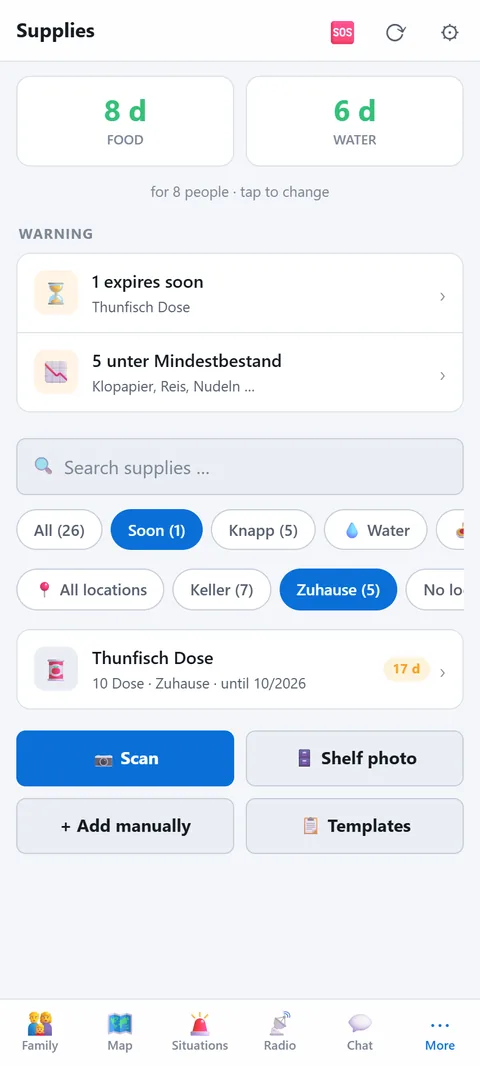
- Scan: barcode with the camera; the app fetches name, quantity and calories from a product database. If the item is already in your supplies, it asks: add to the same best-before date, or create a separate item with a different date.
- Best before: type it as printed on the pack (07/2046, 31.7.46 or just 0746), say it into the keyboard microphone ("July 2046"), pick it in the calendar or set +1, +2, +5, +10 years. Month and year are enough; the end of the month then applies.
- Shelf photo: take a photo of the shelf; the app reads the items and suggests entries.
- By hand: name, category (water, food, canned food, baby food, medical, hygiene, energy, fuel, tools), quantity and unit, expiry date, minimum stock, calories.
- Copy: create the same item at another location or with another expiry date without retyping.
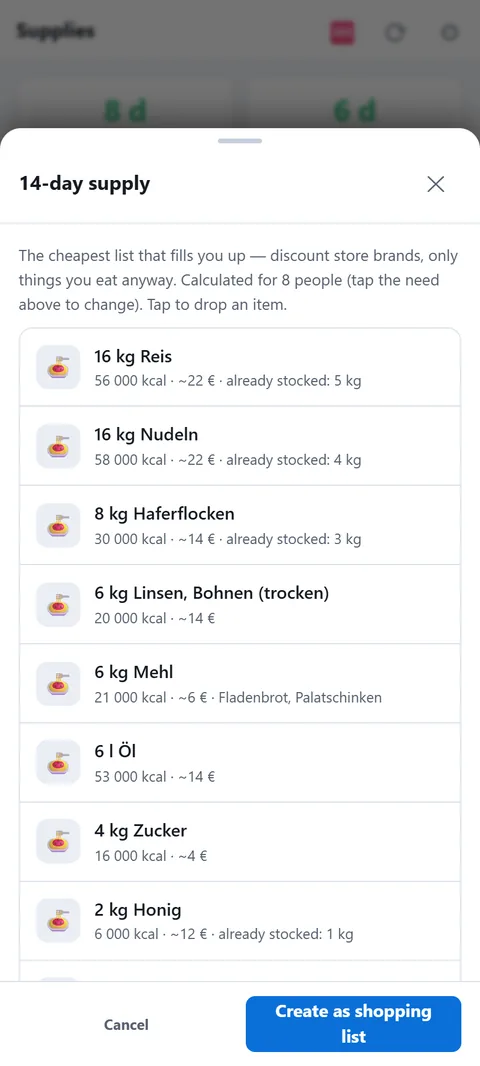
- 📋 Templates: "14-day supply" is the cheapest list that fills you up (discount store, ~€280 for 4 people); "Forget-it supply" is rice, oats, sugar, honey in Mylar bags, emergency rations and preserved water for 20 years. Both scale to your number of people. They are created as minimum stock: what you buy you enter as quantity, what's missing shows under "Low" — that's the shopping list. The 14-day list is also on the website to print.
Storage locations
Every item has a storage location (home, cellar, car, cabin). From the map, markers of the type Accommodation or Depot are suggested — meeting points are not. If GPS says you are at a known place, the app filters to that place automatically and new items go there.
At the top
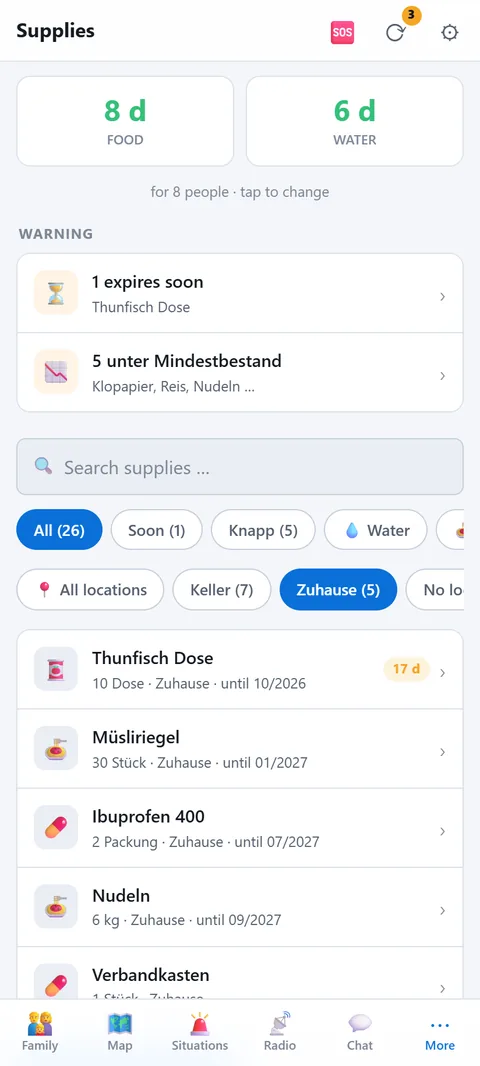
Two numbers: how many days of food and water you have for your people. Below, "Attention" with everything that expires within 30 days or drops below minimum stock.
How the days are calculated
Food: the app adds up the calories of all items (calories per unit × quantity) and divides by your household's daily need. If everyone is entered under People, their need by age applies: adults 2,200 kcal, teenagers 2,400, children 1,400, seniors 1,900, infants 700. Otherwise it uses a flat rate per person. Items without a calorie value don't count. Enter the kcal from the pack, or your supply looks smaller than it is.
Water: 2 litres per person per day for drinking and simple cooking. Only items in the Water category count. For bottles choose the unit piece and enter Contents per piece: 6 bottles of 1.5 l make 9 litres. If the size is already in the name ("Mineral water 1.5 l"), the app pre-fills the field. Without it, each bottle counts as 1 litre, and the endurance view says how many items that is. Anything far past its best-before date drops out of the calculation; how long things still count is explained under Endurance.
Fuel: For gas bottles, briquettes or bags of wood enter Weight per piece in kg; for loose wood simply use the unit kg. Then choose What for?: heating with wood, heating with gas, cooking or other. Only heating fuel counts towards heating days in the endurance view, and only if a matching stove stands at the same location (Building systems).
🕯️ Half rations
The "🍽️ Normal / 🕯️ Half rations" switch calculates food at half portions: 6 days become 12. It is not advice to go hungry, but the honest answer to how long things last in a pinch if everyone eats less. Water always stays at the full 2 litres, because you cannot save on drinking.
Calculating per location
Pick a location at the top and both numbers apply to that place only. That way you see separately how long you last at home, at the holiday house and with what is in the car. Without a filter everything counts together. Good for an overview, but in an emergency you are in one place, not all of them.
🍲 What shall I cook?
The "🍲 What shall I cook?" button at the top of Supplies suggests meals from what is at the chosen location: dal with rice, coconut lentil curry, chili with rice, a canned meal with bread, lentil soup, pasta with tuna, emergency ration porridge and more. The app recognises ingredients by the item names. At the top are the meals you have everything for, below those missing just one ingredient. Items expiring soon are used first. Every recipe shows calories, water and cooking time; the filters "No cooking" and "Little water" help when fuel or water is short. Quantities are for your number of people. "🍽️ Cooked" shows what will be deducted and, once confirmed, takes it off your supplies, earliest expiry first.
Keeping it current
- Check "Attention" once a month. Use up and replace what expires soon: what was bought first gets eaten first.
- After shopping, raise the quantity of the existing item instead of creating a new one. Different expiry date? Use "Copy".
- Rough and current beats exact and outdated. The odd gram does not matter.
- All devices in the household see the same supplies. Whoever shops enters it.
⏳Endurance
The one question that matters: how long can we last on what we have?
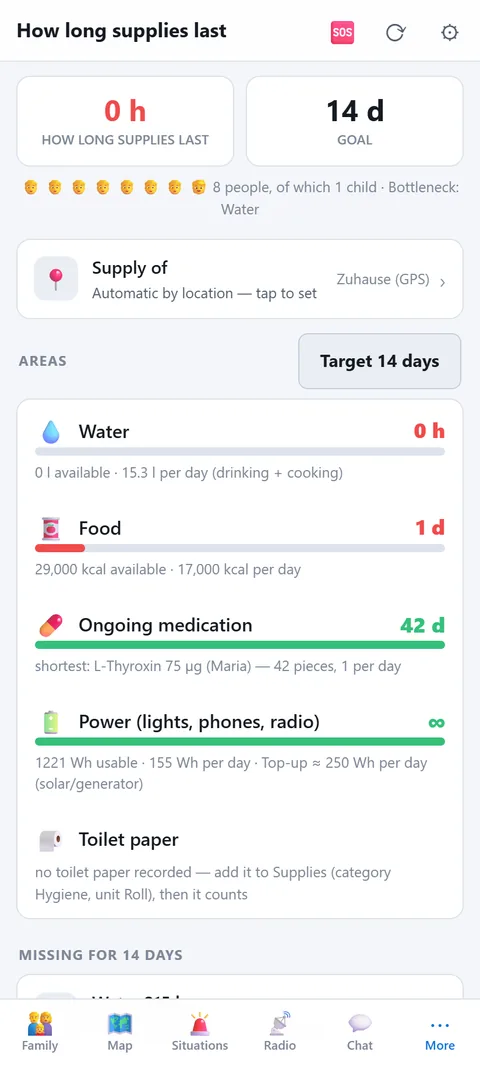
- Calculation: water (drinking and cooking per person and day), calories by age group, long-term medication (stock ÷ daily dose), power (batteries, power banks, car battery plus solar top-up), toilet paper.
- Bottleneck: the scarcest area sets the number at the top. Green from the goal (default 14 days), orange below, red under half.
- Supplies at: automatic by location (nearest known place with supplies), all places together, or a fixed place.
- Missing for 14 days: a shopping list with quantities, e.g. "water 103 l ≈ 12 six-packs of 9 l".
- Change goal: 7, 14 or 30 days.
- Expired: a best-before date is not an expiry date. Canned food keeps counting up to 5 years past the date, food (pasta, rice, bars) and water 12 months; baby food, medication and everything else drops out on the date. Items past the date but within this grace period show in orange as "past best-before" (still usable, check); only after that in red as expired.
What the number is for
Civil protection organisations recommend being able to look after yourselves for 10 to 14 days: no shopping, no mains power, no tap water. The number at the top tells you how far you are from that. It is not for an average family but for your people and your supplies.
Each area in detail
- Water: 2 litres per adult per day, children 1.3 l, infants 0.8 l.
- Food: calories by age group, adults 2,200 kcal. You can enter an individual need under People. Baby food counts separately.
- Medication: for every regular medication under People, stock divided by daily dose. If an important medicine runs out after 5 days, the top says 5. That is on purpose.
- Power: 15 Wh per person per day for one phone charge, plus 35 Wh for light and radio. 85 % of batteries and power banks count. Solar panels from the Energy module add 5 hours of sun per day.
- Hygiene: 0.2 rolls of toilet paper per person per day, 6 nappies per infant. Toilet paper is shown as a hint but does not set the endurance at the top; nappies do.
Using the "Missing" list
Below the number you see what is missing for the target, already in shopping quantities: water in six-packs, food as 400 kcal tins or as kilos of rice and pasta. Work through the list once and you have reached the target; after that a monthly glance is enough. The bottleneck is what matters: ten kilos of rice do not help if the water runs out after three days. So fill the red area first.
Heating and half rations
- 🔥 Heating: counts if a stove that heats without power stands at the chosen location (Building systems, type Heating, "What does it burn without power?"). The app counts wood at about 20 kg per winter day and gas at 2.2 kg (an 11 kg bottle ≈ 5 days). If a location has both, the days add up.
- Bottleneck only in winter: from October to April the heating days count towards the endurance at the top; in summer they are shown for information only.
- Without a stove: in winter a hint appears instead of a number. Warm sleeping bags and blankets are then the heating.
- 🕯️ Half rations: the same switch as in Supplies. It only halves food; water, power and heating stay the same.
🤝Groups
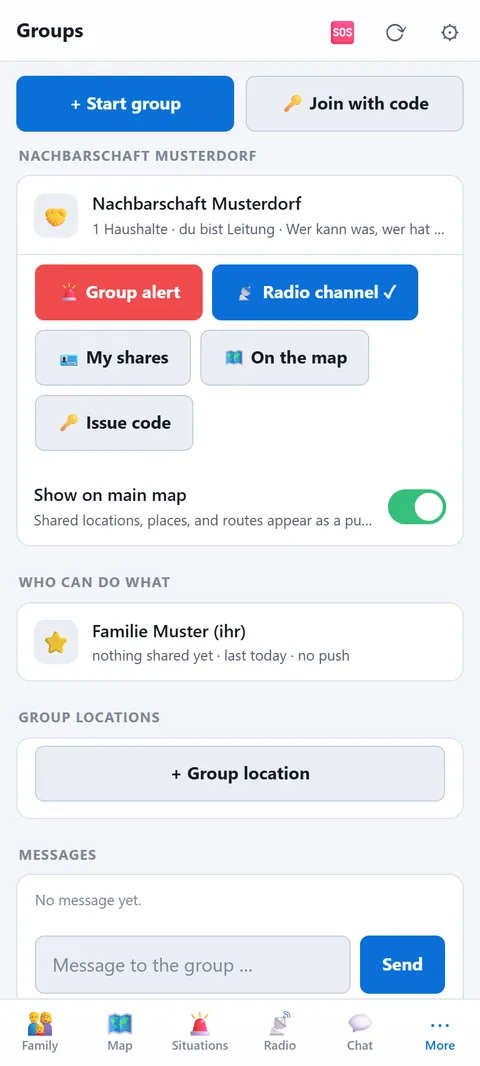
Neighbours, friends, the village: who can do what, who has what, where do we meet. Your household stays private.
- Create and join: the lead creates the group and shares a join code (time-limited, can be locked). Other households join with the code.
- My sharing: every household decides what the group sees: skills (doctor, electrics, radio, security …), resources (generator, well, tractor, drone …), number of people, contact, location.
- Who can do what: the overview of all members with what they share.
- Group alarm: push to all members with replies "I'm coming", "Can't", "Need help". At most ten per day.
- Messages: a short group board, visible for 14 days, with a quiet push to the others.
- Group locations: meeting point, water, shelter, depot: tap on the map, take a marker or GPS. Shown to all members on the main map and in routes.
- Share routes: give your own routes to the group.
- 📡 Radio channel: every group has its own radio key. Choose "📡 Radio channel" at the group, then "Set up" once on the radio — and the radio chat gets the group's tab, encrypted, members only. Group alarm and replies then also go over the radio. One group channel per device.
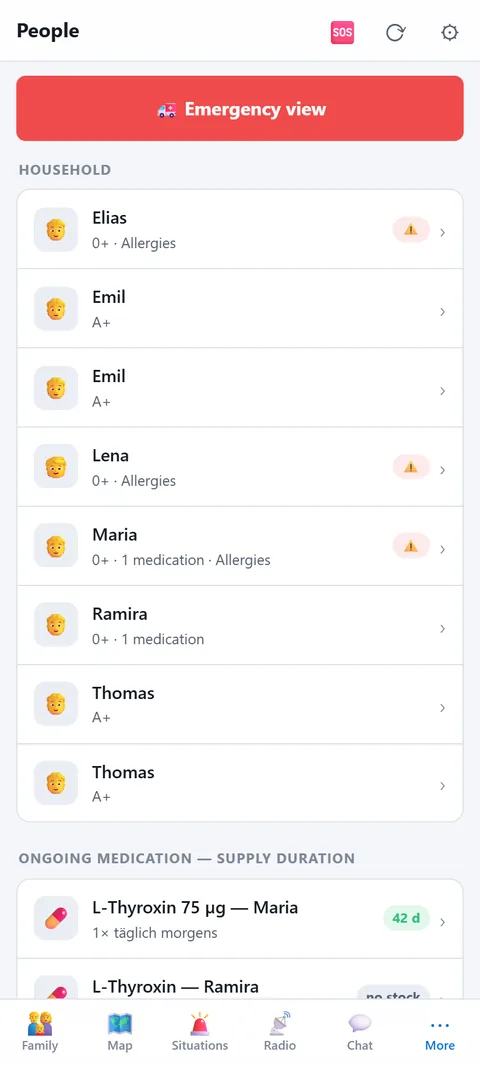
👥People
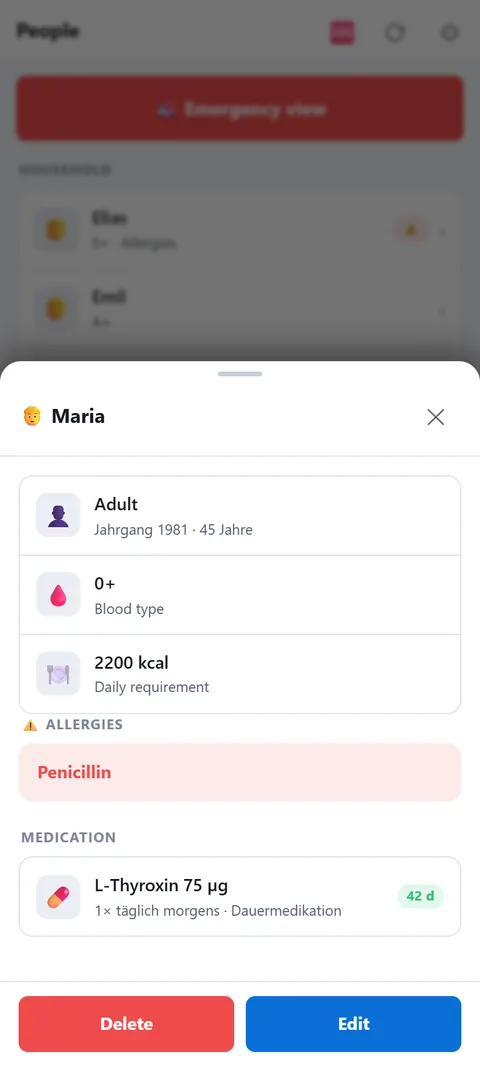
Who belongs to the household, and what someone else needs to know about them in an emergency.
- Age group: infant, child, teenager, adult, senior. This sets the need for water and calories for the endurance calculation.
- Medical: blood type, allergies, conditions, vaccinations, notes.
- Medication: name, dose, stock and daily dose. Long-term medication feeds into endurance and warns before it runs low.
- Emergency contact per person.
☎️Contacts
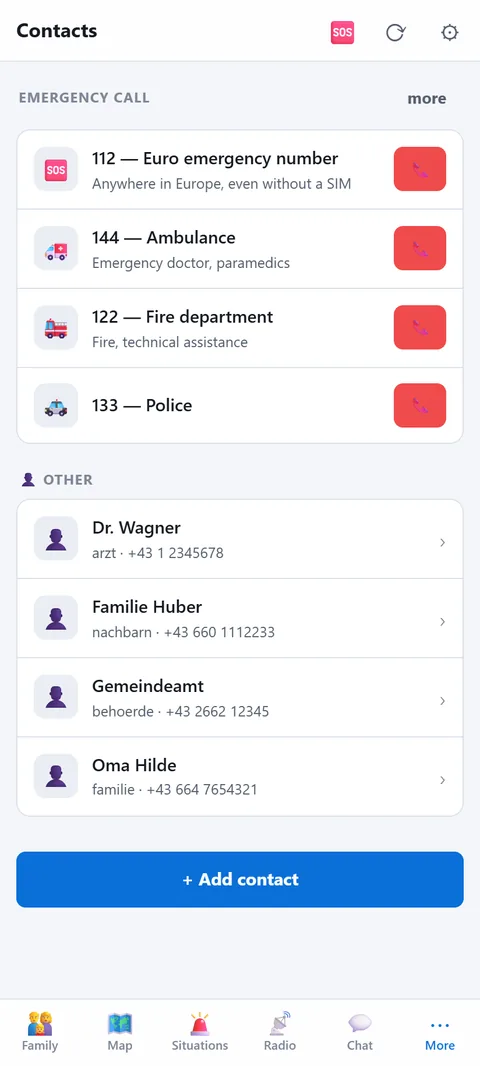
- Emergency numbers at the top, one tap to call: 112 European emergency number, ambulance, fire brigade, police, poison centre, on-call doctor, gas emergency and more.
- Own contacts in groups: family, neighbourhood, doctors, authorities, trades. With phone, address and a note ("generator, tractor").
- Contacts are the same across the household; every device has them offline.
🔧Home systems
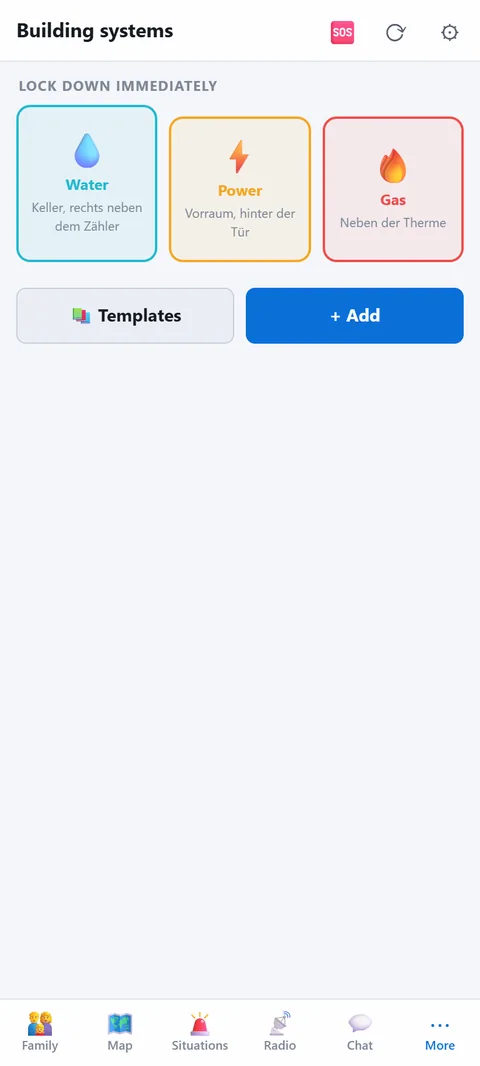
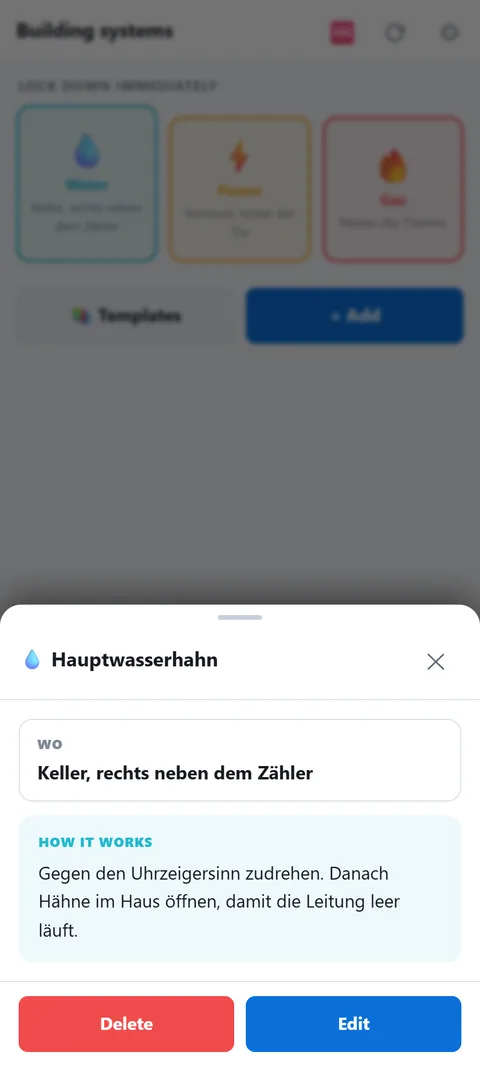
Where is the main water valve, the gas shut-off, the fuse box? With photo and instructions so that someone who has never done it can find it.
- Shut off now: water, power and gas are large tiles at the top.
- Per entry: location, step-by-step instructions, warning (e.g. "if you smell gas, don't switch on lights"), photo.
- More types: heating, sewage, fire protection, other. Templates with typical texts.
What to photograph
Start with the three shut-offs the app shows as large tiles at the top: main water valve (shut off water), main gas valve (shut off gas) and the fuse box with its main switch. Heating, sewage, fire protection (such as a fire extinguisher) and other follow. With a burst pipe, a smell of gas or a cable fire, minutes count, and often only one person in the household knows where to shut off.
How to create an entry
- Templates: For water, gas and power there are sample texts, for example "lever across the pipe = closed". They are only a guide: check them against your own installation and adjust. The gas template already carries the warning not to switch on lights or use a phone if you smell gas, to ventilate and to leave the house.
- Where exactly: Describe the place so a stranger can find it, for example "cellar, behind the door on the left".
- Photo: The rear camera opens directly, the image is reduced to 1400 pixels. Show the valve or switch with its surroundings so it can be recognised.
- Action: Describe the step with turning direction or lever position so that someone who has never done it can manage.
Limits
Entries sit on all devices in your household but, unlike documents, are not additionally encrypted. So do not enter codes or access data. The app does not replace a professional and does not know your installation: if description and photo no longer match, for example after a renovation or a new heating system, you must update the entry yourself. With gas, when in doubt: get out, call the emergency number, switch nothing on.
Heating and house
Every entry has a House / location from the same list as Supplies, for example Vienna or holiday house, and below it Where exactly for the room. For the type Heating the app asks "What does it burn without power?": wood (fireplace, tiled stove, wood range), gas bottles (gas heater) or nothing, because it needs power like a boiler, pellets or a heat pump. A stove without power at the same location as the firewood or gas bottles gives the heating days in the endurance view. Run gas and wood stoves indoors only with a CO detector.
🪪Documents
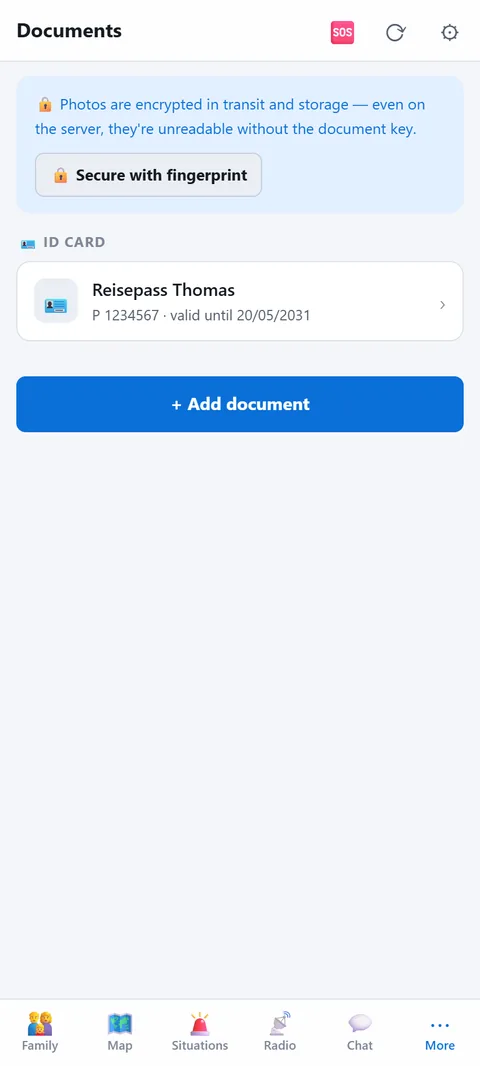
Passport, insurance, medical, vehicle: as a photo with you when the original stays at home.
- Categories: ID, insurance, medical, finance, vehicle, housing, other. With number, "valid until" and where the original is kept.
- Encrypted: photos are encrypted on the device before syncing. On the server they are unreadable without the document key.
- Lock: optionally protect with fingerprint or face.
- Expiry: the app reminds you before a document expires.
Which papers make sense
Add what is hard to replace in an emergency: passport and ID card, driving licence, birth and marriage certificates, insurance policies, vaccination record, prescriptions and a medication list, vehicle papers, rental agreement or land register extract. As photos these emergency documents stay within reach even if the folder remains at home or is lost. In the field "Original is kept" note where the paper lives at home, for example in the safe or in the folder in the living room.
Photo, emergency folder, expiry
- Photo: The rear camera opens directly, the image is reduced to 1600 pixels and can be cropped. Photograph the whole page in good light so that numbers stay legible.
- Emergency folder: One button prints or shares all readable documents, one sheet per document with image, category, number, expiry date and storage place. On a phone this goes through the share sheet, on a computer through the print dialog, also as PDF. A paper copy in the emergency bag needs no battery.
- Expiry: If a document expires in less than 90 days the list shows the days left; expired ones are marked red.
Privacy and limits
Document records reach the server only encrypted (AES-GCM). The first device creates the key and it is never sent to the server. On further devices you enter it once in the settings, otherwise the list shows "Encrypted document". If every copy of the key is lost, the documents cannot be recovered, so write it down separately on paper. On the device itself the images are readable; the device lock and the optional fingerprint or face lock protect them, and that lock closes again when you leave the section. A photo does not replace an original, and not every office accepts it.
🔋Energy
How long do light, phones and radio last when the power is out?
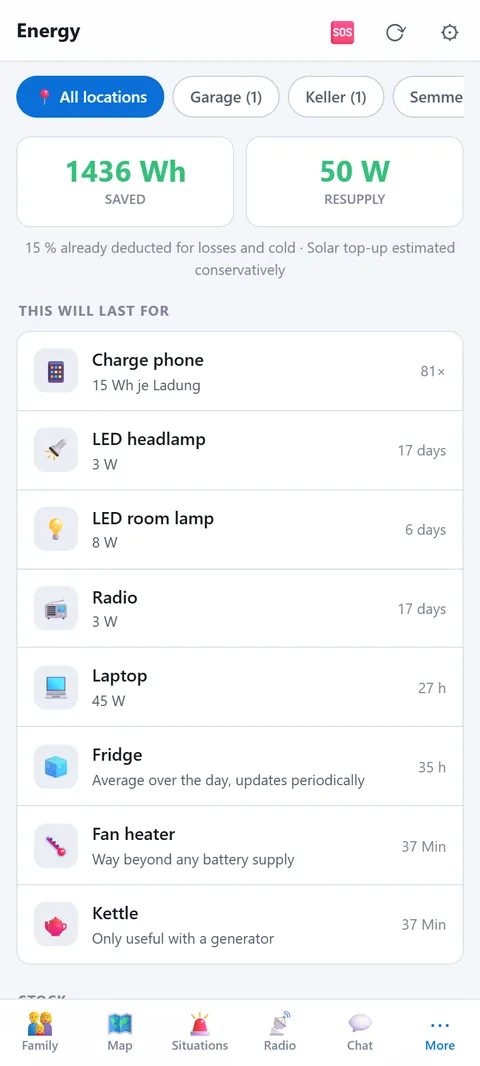
- Record storage: power banks (mAh), batteries (Wh), car battery (Ah), solar panel (W), generator (W). The app converts everything into usable watt-hours with realistic deductions.
- Consumers: phone charging, radio, headlamp, laptop, fridge, fan heater with typical daily need.
- Result: days of power for the essentials, solar top-up calculated conservatively (winter, clouds, angle).
- Feeds into endurance.
- Locations: if an entry has a storage location, a filter row appears at the top (Flat, Holiday home …). Stored watt-hours, supply and "That's enough for" then apply to the chosen location — what's in the holiday home doesn't help in the flat.
Power cut and blackout: how the app calculates
In a blackout it does not matter how many power banks are in the cupboard, but how long the radio runs and how often the phone gets charged. So the app converts everything into watt-hours (Wh).
- Power bank: mAh × 3.7 V ÷ 1000. A 10,000 mAh power bank therefore gives about 37 Wh, not 10 Ah at the USB output.
- Car battery: Ah × 12 V, but only half counts as usable. 60 Ah gives roughly 360 Wh.
- Battery: Wh are taken as entered.
- Deduction: Of everything stored, 85 % counts. Example: 37 Wh gives about 31 Wh usable, which is two phone charges (15 Wh each) or around 10 hours of radio (3 W).
- Solar and generator: They store nothing, they supply power. Solar counts only at a quarter of its rated output, a generator at full output.
Prepare before the power is gone
Enter each source with quantity and storage location. The "Charged" switch reminds you that power banks drain by themselves; an entry with the switch off shows the tag "empty?". The list "That's enough for" shows at once what is carried: headlamp (3 W), room lamp (8 W), laptop (45 W) and fridge (35 W daily average). A fan heater and a kettle at 2000 W each blow through any battery supply and only make sense with a generator. Record generator fuel separately under supplies.
Honest limits
All values are approximations. The app does not measure charge, it calculates from what you enter. Cold lowers battery capacity, converters lose energy, in winter a solar panel delivers only a fraction. Better to calculate cautiously than too optimistically. Never run a generator in an enclosed space (carbon monoxide risk).
📚Knowledge
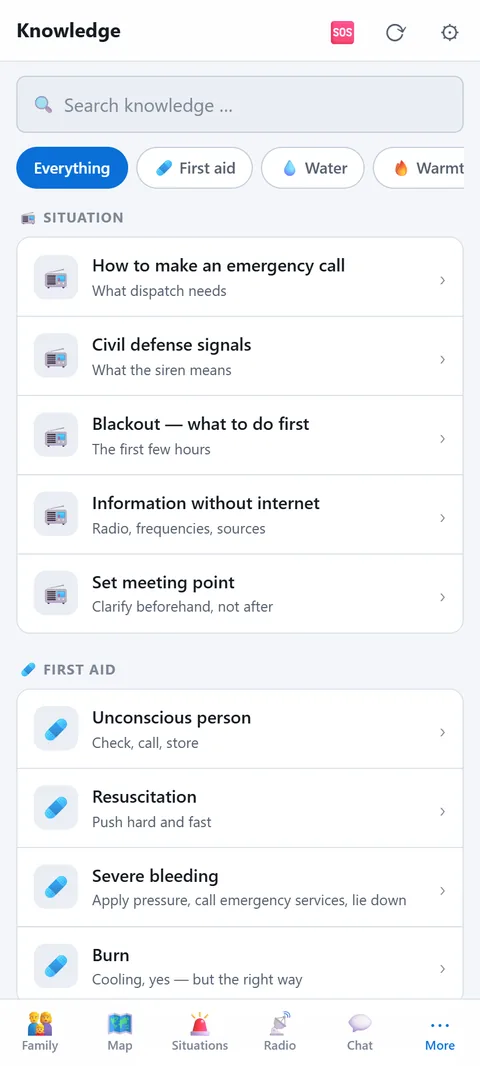
Short guides for the moment when nobody can search the web.
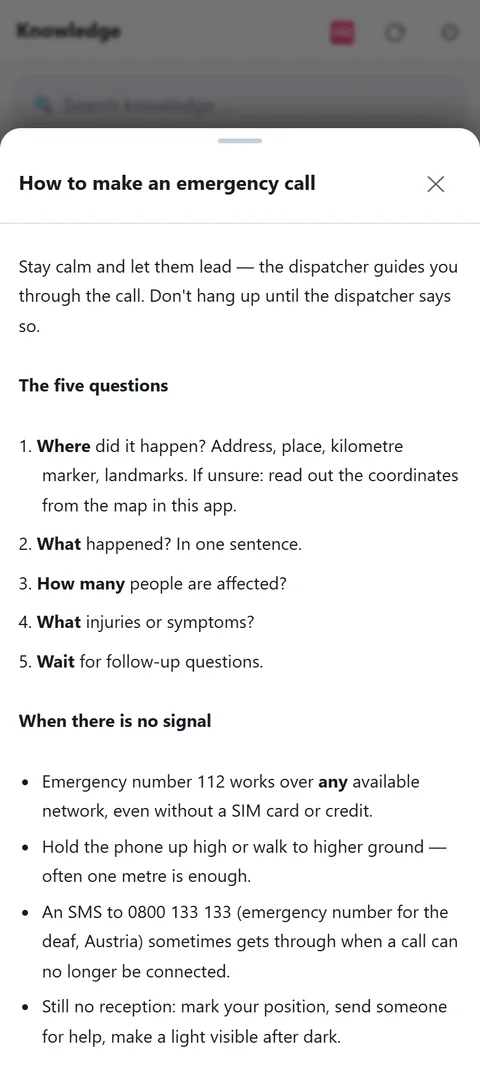
- Topics: first aid (unconsciousness, CPR, bleeding, hypothermia), making water drinkable, warmth without power, blackout: what first, how to make an emergency call, siren signals, information without the internet, agreeing a meeting point, fire and fire safety.
- Offline: all articles are on the device.
- Own articles: add notes and instructions for your household.
- Linked: situations point to the matching articles.
What is inside
14 articles in four categories plus Own. First aid: unconscious person (check breathing for at most 10 seconds, recovery position), CPR (5 to 6 cm deep, 100 to 120 times a minute, 30 to 2, if untrained compressions only), severe bleeding, burns, hypothermia. Making water drinkable: clear it first, then boil it (1 minute, 3 minutes above 2000 m), disinfectants, filters, most of which do not stop viruses. In a blackout fill the bath and all containers at once while the pipes are still under pressure. Warmth: staying warm without power, fire and fire safety including carbon monoxide. Situation: emergency call, civil protection signals, blackout, radio, meeting point, infection.
Search and your own notes
- Search: The search box looks through title, short line and full text; a filter narrows by category.
- No network: The articles are part of the app itself and available from installation, even if it never synced.
- Own notes: With heading and text, for example "Turn off the house water pump". They sync with the household but are not additionally encrypted.
Limits
The first-aid summaries do not replace a course, and the texts say so themselves. Emergency numbers (144, 122, 133) and siren signals describe Austria and differ in other countries. How to shut off water, gas and power at home is recorded for your own installation in the Home systems module; Knowledge covers it only in general.
📖Log
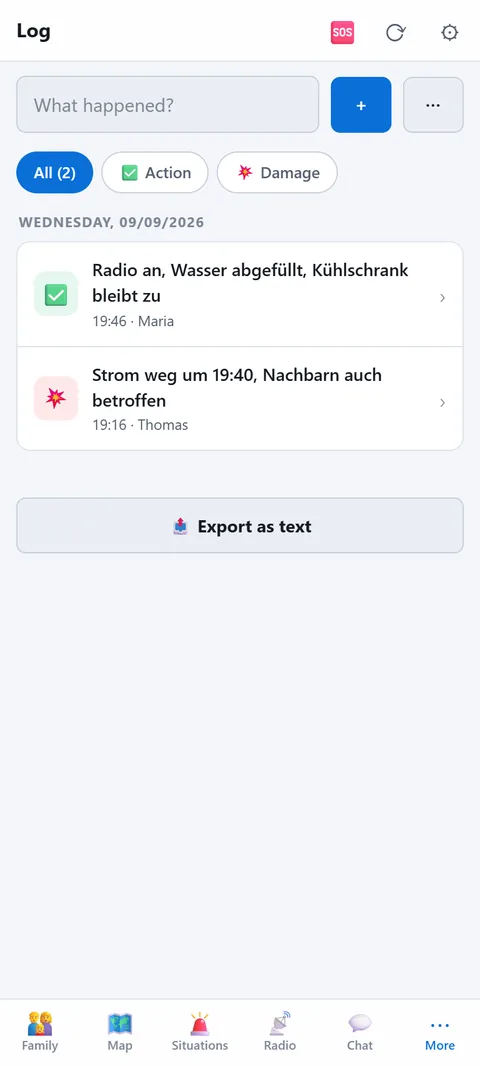
What happened when and what you did. For the family, the insurance and next time.
- Entries: note, action, damage, contact, authority, consumption. With timestamp, who, and an optional photo.
- Situation: during an active situation entries are assigned to it.
- Export: share as text, for example to the insurance.
🆘Call for help
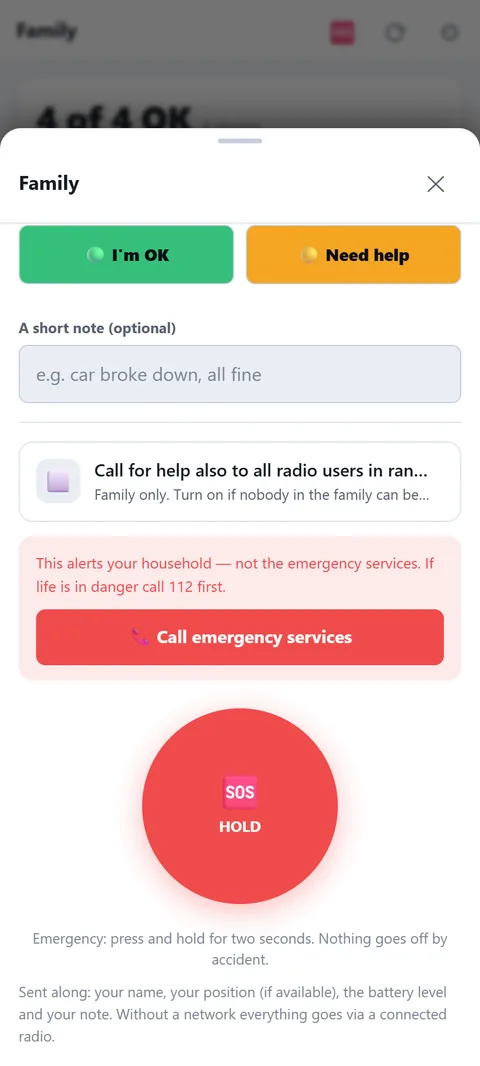
The red SOS button at the top: one tap, and every device in the household gets an alarm with your location.
- What is sent: position, battery level, time, optionally a short text ("fell, need help").
- On the receiving end: loud alarm even on a muted phone, location on the map, call with one tap.
- All clear: "Mark as resolved" ends the alarm for everyone.
- Without a network: the call is buffered and goes out as soon as a network is available. For real emergencies, 112 remains the first call.
- To all radio users: the switch "Call for help also to all radio users in range" (off by default) additionally sends the 🆘 with position to the public Meshtastic channel — for the case that the family doesn't answer. Everyone can read it there.
SOS, status and alerting the family
The emergency button is only one of three levels. In the "Family" sheet you report with one tap as "I'm fine" (green, silent, no push) or "Need help" (yellow, push message to every device in the household). The red SOS only fires once you hold the button for two seconds, so nobody raises the alarm by accident. A short text (up to 200 characters) is optional.
Who learns what, and by which route
- Internet: With a network the message goes by push to the other devices. The app then tells you honestly how many devices it reached. If nobody has notifications on, the message is at least in the chat.
- Radio: If a Meshtastic radio is connected, the same short version (name, text, position, battery level) also goes out over radio. That keeps the overview complete without a network.
- Position: The app waits at most twelve seconds for a location. Without a position the call still goes out.
- Overview: Each person shows their latest state. Older than 24 hours it counts as "outdated", devices without a report appear as "No response". At the top a red strip shows an open call for help (up to 12 hours), a yellow one another person's request for help.
Preparing and limits
Switch notifications on on every device and try the green status once. Set meeting points on the map, ideally three: in front of the house, in the village, outside it. An activated meeting point goes to everyone, with each person's distance. Important: the call for help alerts only your household, not the emergency services. If life is in danger, dial 112 or 144 first; the button for that sits in the app right above the red SOS. Once you are safe again, end your own call with "Give all clear" and your status turns green.
⚙️Settings
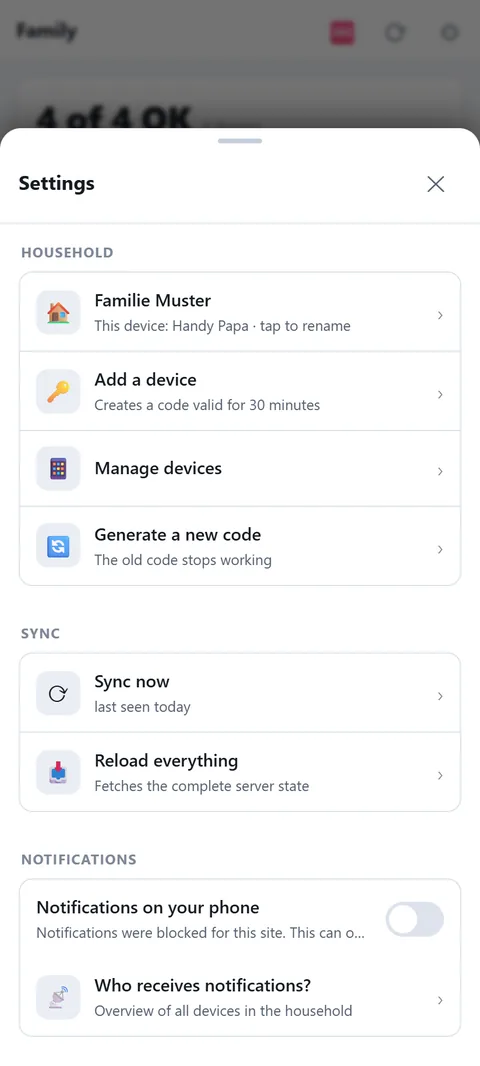
- Household: name, show, renew or lock the join code, share the join link, see and remove household devices.
- Notifications: set up and test push, choose the alarm sound.
- Lock: protect the app with PIN, fingerprint or face.
- Appearance: light, dark or follow the system. Language German, English, Slovak, Ukrainian or automatic.
- Update: show version, check for a new version.
- Data: delete all local data; a device is signed out under "Devices in the household". Have server data deleted: prepper.team/loeschen.
- Support Prepper: link to the donation page.
- Important to know: the notice from the first start — no emergency service, no authority, alerts can fail — readable any time.
🔒Data and security
- No account: a household is a number with a join code. No name, e-mail or phone number needed.
- Server: located in Nuremberg, Germany. It stores the synced household data, alert places and push addresses.
- End-to-end: chat, family status, locations and document photos are encrypted; the key never leaves the household. Lost devices can be removed from the household.
- Groups are shared by design: whatever you share is visible to all members.
- Location is only shared if you switch it on (call for help, group sharing). The last point is stored, never a track.
- Daily briefing: an AI model receives alert places, supply quantities and people as age groups: no names, no diagnoses, no chats.
- No ads, no analytics, no sharing. You delete everything local yourself, everything on the server with an e-mail to office@prepper.team.
Full details: privacy and legal notice on the home page.